Service Booking &
Resource Management
A full-featured service booking platform — manage services, resources, equipment, and time slots with an integrated website experience, customer portal, role-based access, and automated notifications.
Define services with category, duration, pricing, HD images, rich HTML description, and SEO metadata. Publish/unpublish individually.
Manage technicians with resource types, working calendars, leave integration, and per-service allocation requirements.
Real-time availability computed per service type, resource allocation, leave schedule — no static slot records needed.
Public /services page with category filters, price range, duration, sort, and 3 view modes (grid / list / kanban). Visual slot picker with green/red circles.
Tabbed /my/bookings page — All, Today, Upcoming, Completed, Cancelled. Reschedule, update address, cancel, and rate from the portal.
1–5 star ratings with review text. Admin controls visibility per rating. Ratings shown on service cards and detail pages.
Sale order auto-created on confirmation, linked to the booking. Pay Now link in portal for unpaid bookings.
Project task created on confirm. Timesheet start/stop logged when resource starts and completes the service.
Confirmation, reminder, completion, and survey emails. Pre-booking reminder configurable in hours. WhatsApp support optional.
Physical assets linked to services. Available quantity auto-calculated from active bookings.
Graph, pivot, kanban, and calendar views. PDF booking confirmation report. Booking report view with grouping and filters.
Three roles — Resource, User, Manager — with granular record rules. Admin auto-assigned to Manager on install.
Go to Settings → Users → [select user] → Service Booking tab and assign a role.
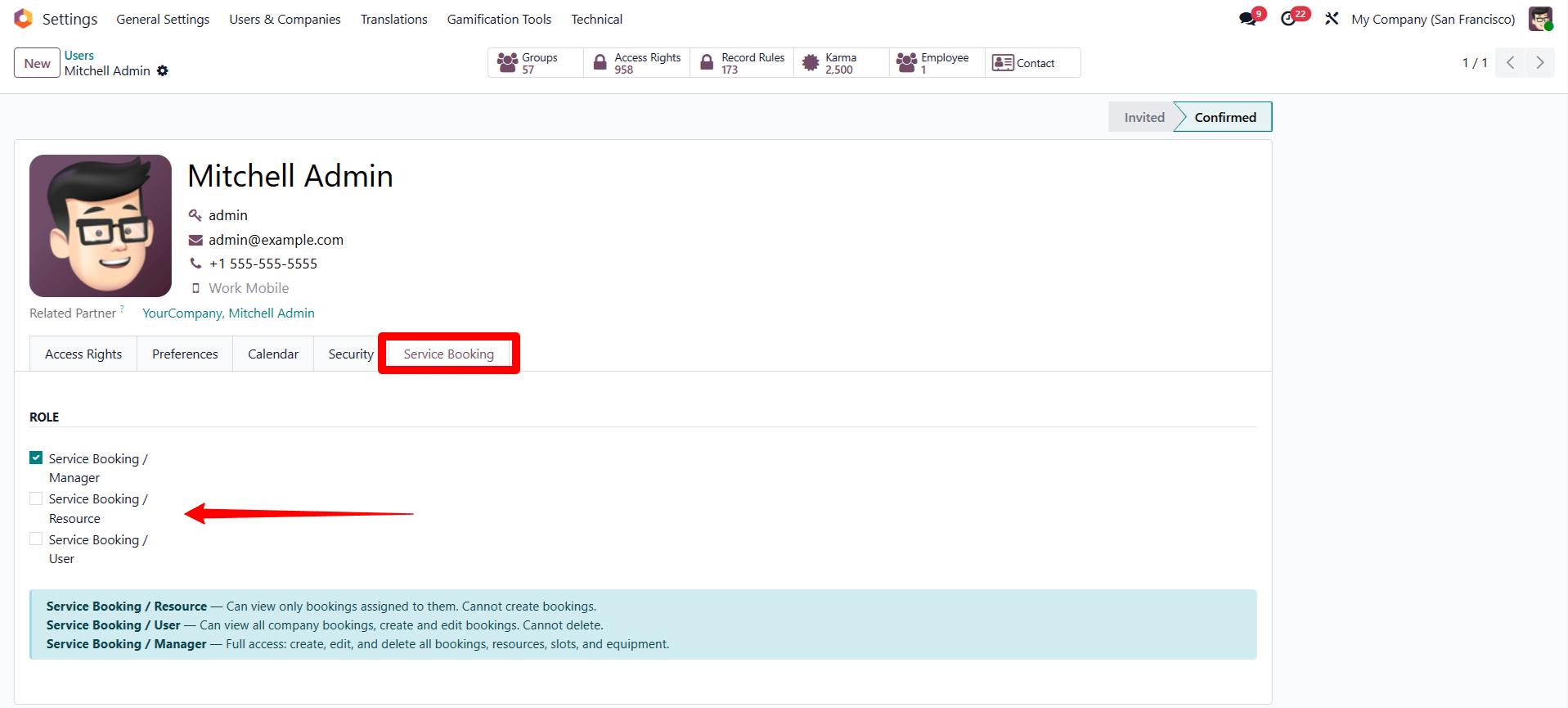
- View own assigned bookings only
- Start & complete their service
- Cannot create or cancel bookings
- View all company bookings
- Create and edit bookings
- Cannot delete
- Full unrestricted access
- Create, edit, delete bookings
- Manage all configuration
Go to Settings → Service Booking section:
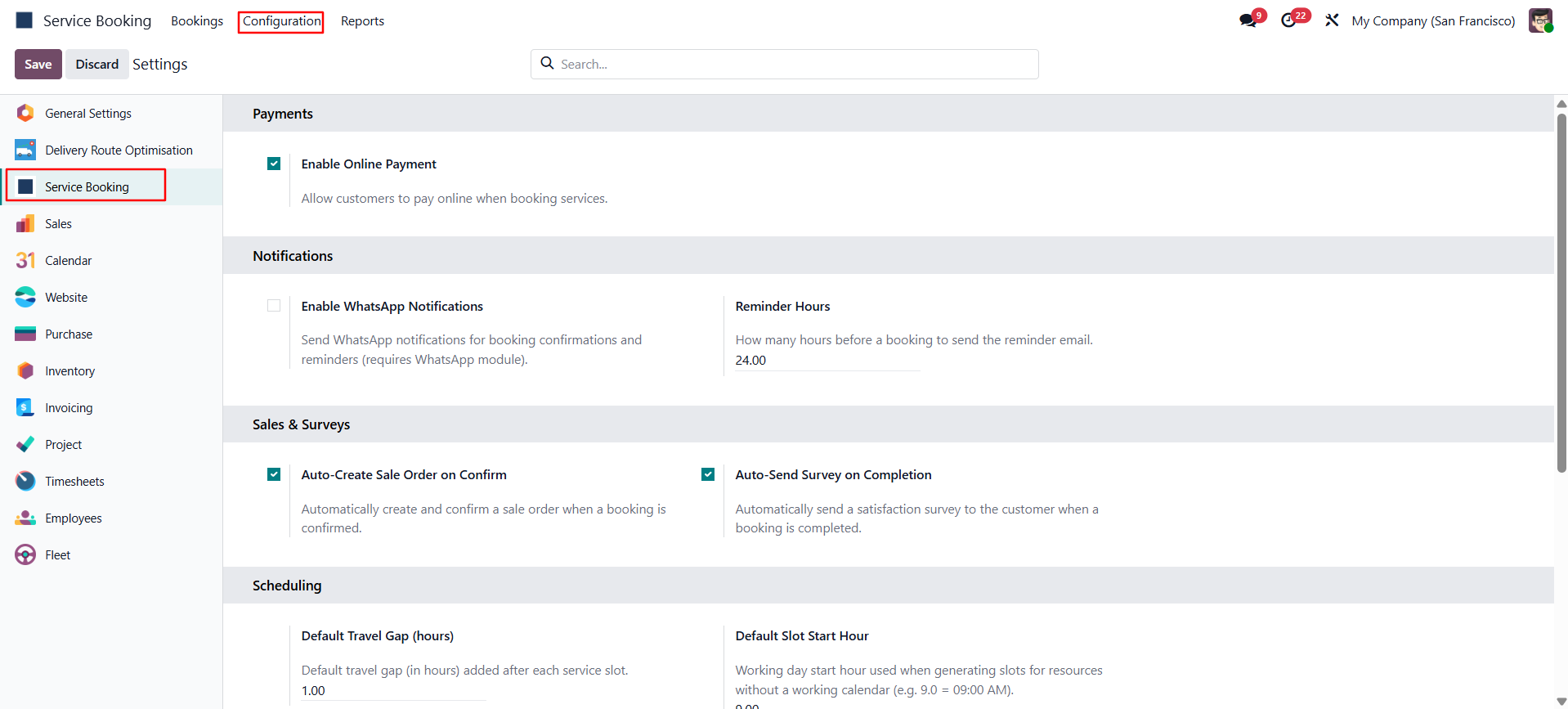
| Setting | Description | Default |
|---|---|---|
| Default Slot Start Hour | Working day start (e.g. 9.0 = 09:00) | 9.0 |
| Default Slot End Hour | Working day end (e.g. 18.0 = 18:00) | 18.0 |
| Advance Booking Min Hours | Minimum hours ahead a customer can book | 1.0 |
| Advance Booking Max Qty | How far ahead bookings are accepted (quantity) | 5 |
| Advance Booking Max Duration | Unit for the above: days / weeks / months / years | days |
| Reminder Email Hours Before | Hours before service to send reminder email | 24 |
Go to Service Booking → Configuration → Resource Types → New.
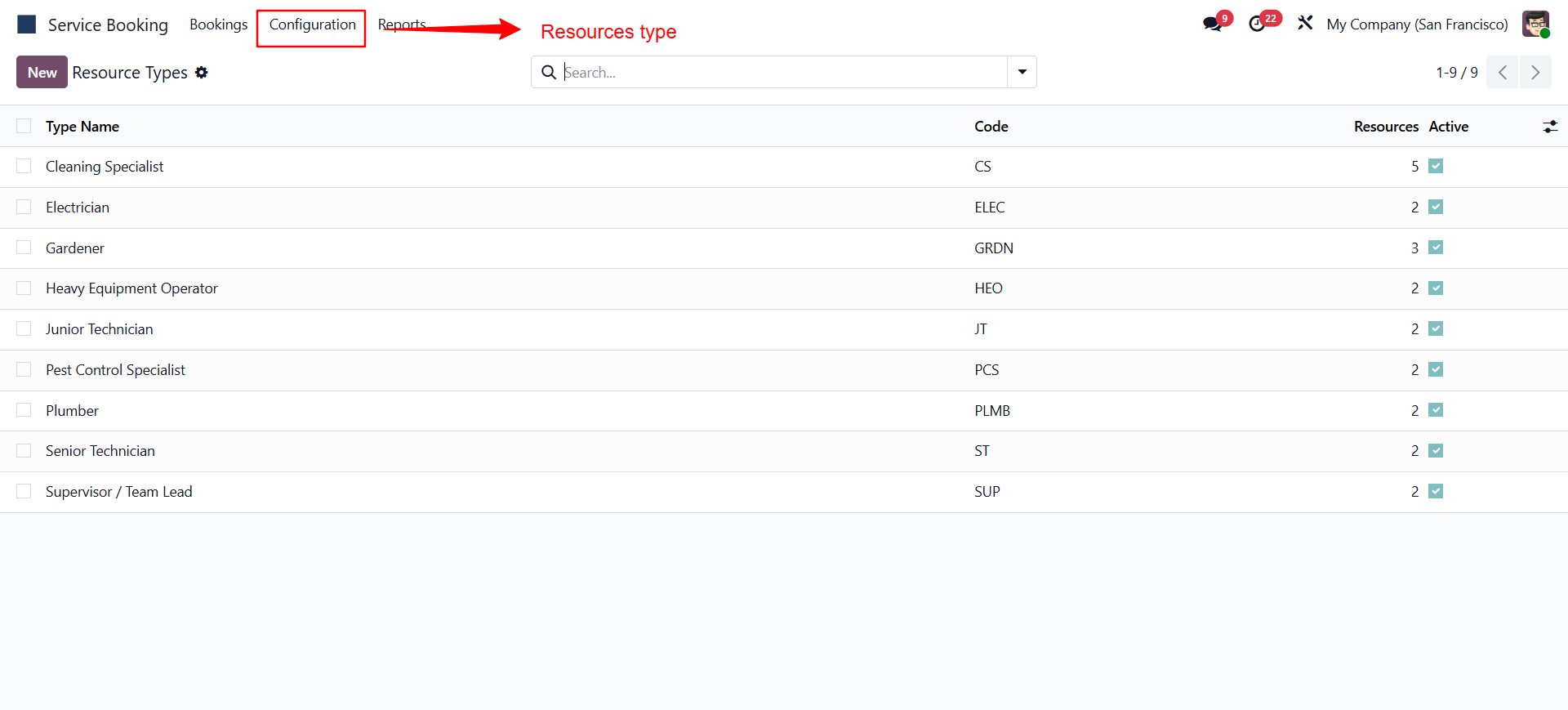
Examples: Cleaning Specialist, Electrician, Plumber, Supervisor.
| Field | Description |
|---|---|
| Name | Display name (e.g. "Senior Technician") |
| Code | Short code (e.g. "ST") |
| Active | Uncheck to retire a type |
Go to Service Booking → Configuration → Service Types → New.
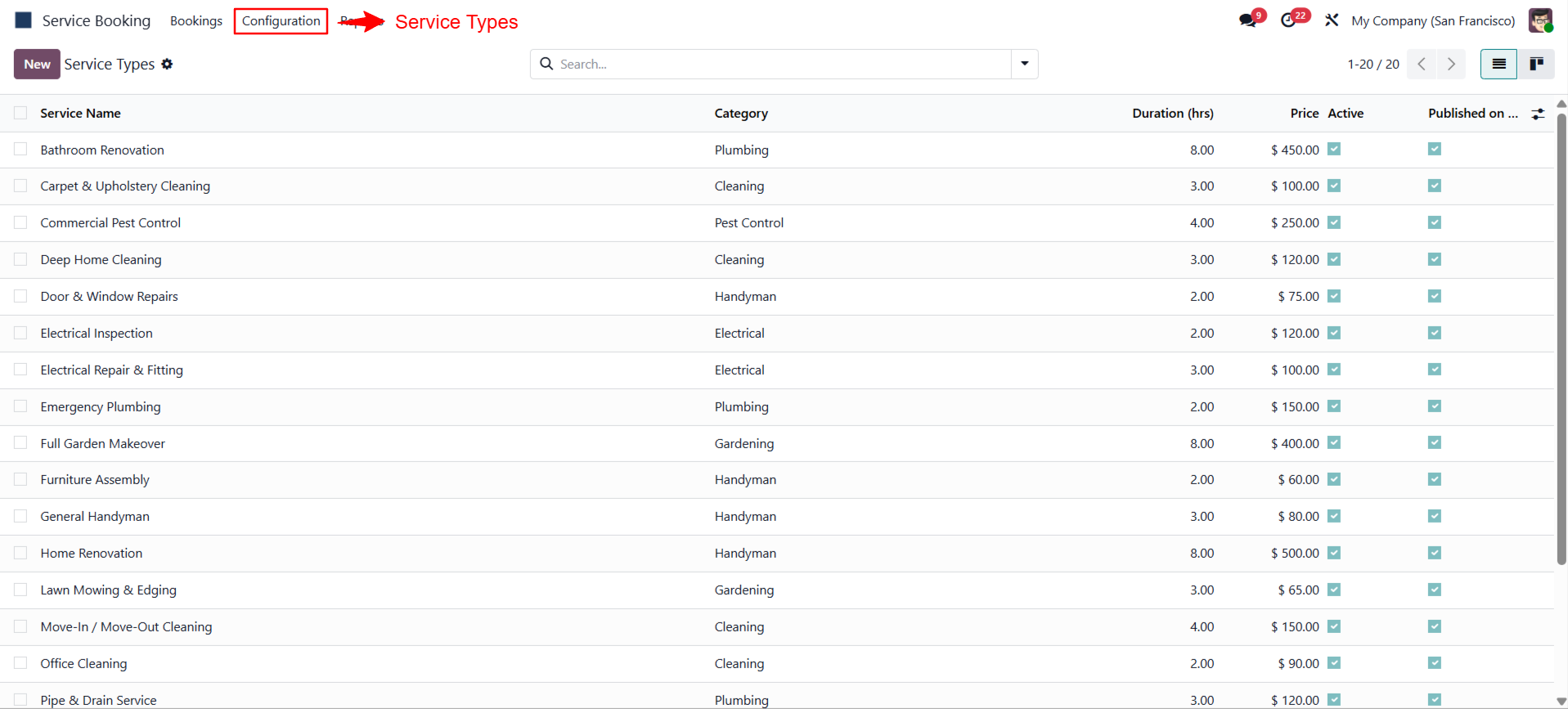
| Field | Description |
|---|---|
| Service Name | Shown on the website and in all booking records |
| Category | Cleaning / Handyman / Gardening / Electrical / Plumbing / Pest Control / Other |
| Duration (hours) | Length of one booking slot |
| Travel Gap (hours) | Buffer added after slot before resource is free again |
| Service Product | Links to a product of type Service for invoicing |
| Image | HD image shown on website (1024×1024 max, auto-resized) |
| Published on Website | Toggle to make bookable online |
| Description | Rich HTML shown on the service detail page |
| Resource Allocation tab | Which resource types + quantities are required per booking |
| Availability Schedule tab | Working hours per weekday for this service |
Go to Service Booking → Configuration → Resources → New.
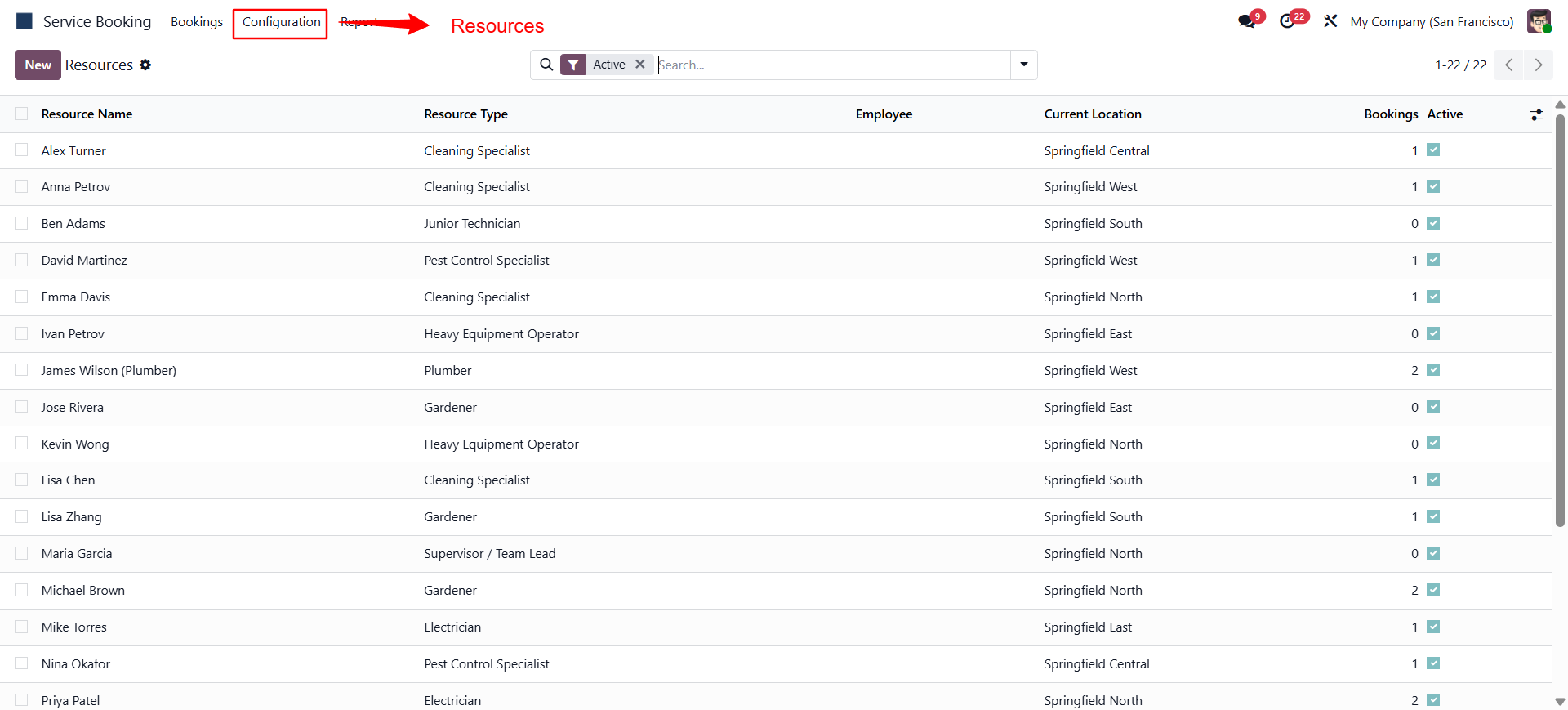
| Field | Description |
|---|---|
| Name | Resource display name |
| Resource Type | Assign to a type created in Step 3 |
| Employee | Link to hr.employee — enables leave checks |
| Working Schedule | Link to resource.calendar; overrides global slot hours |
| Company | For multi-company setups |
hr.leave, state=validate) and blocks those periods automatically.
Go to Service Booking → Configuration → Equipment → New.
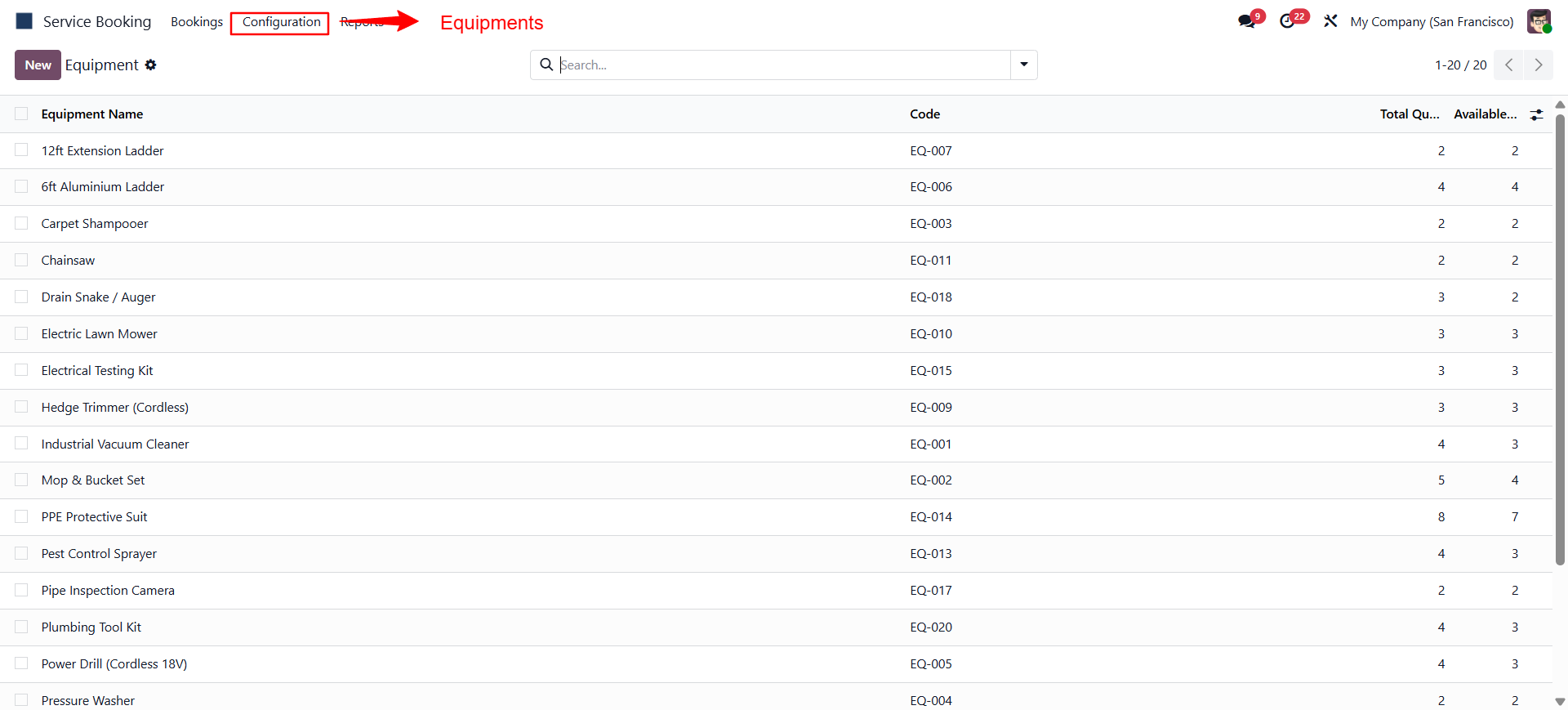
Link equipment items to service types. Available quantity is auto-calculated as Total − units in active bookings.
Open each service type form and toggle Published on Website to make it bookable at /services. Only published services are visible to the public.
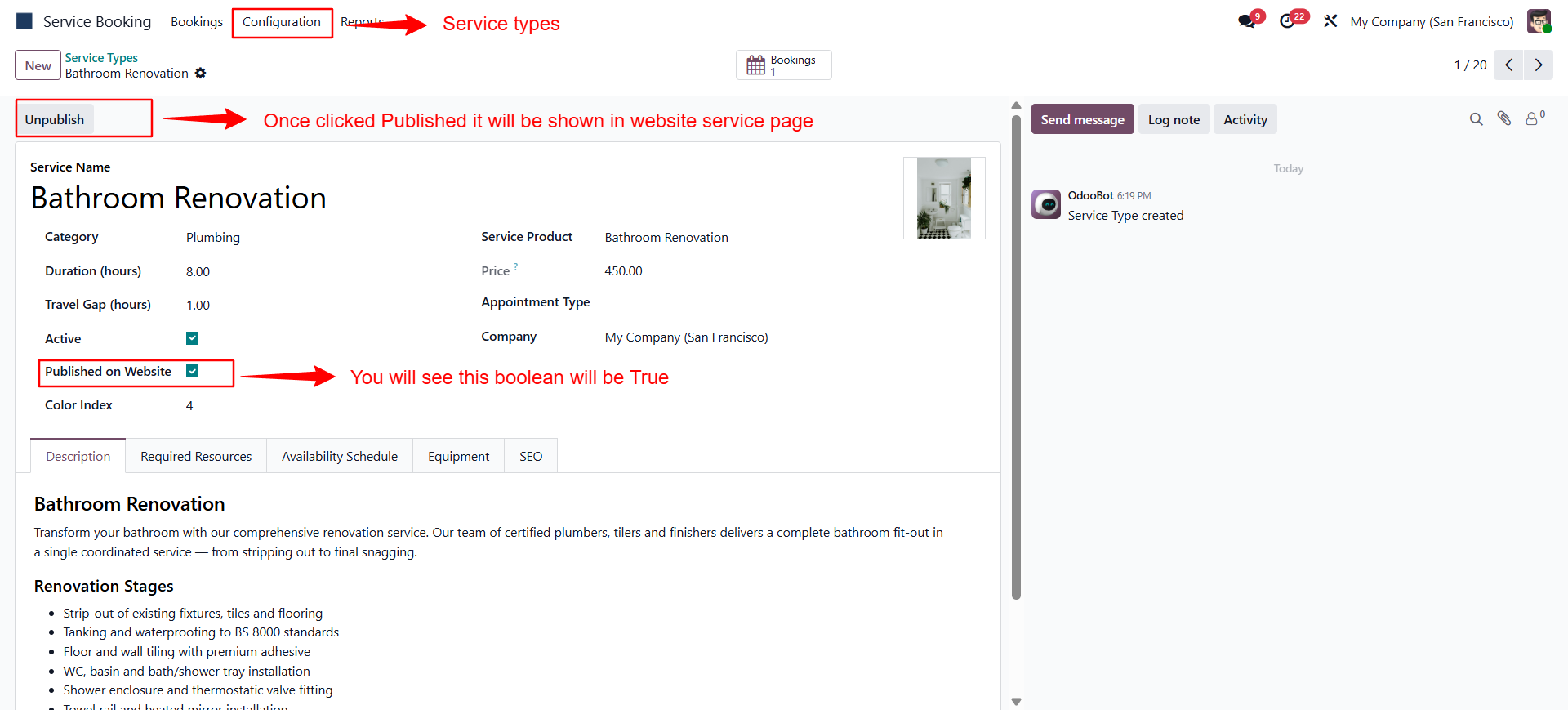
Go to Service Booking → Configuration → Service Ratings.
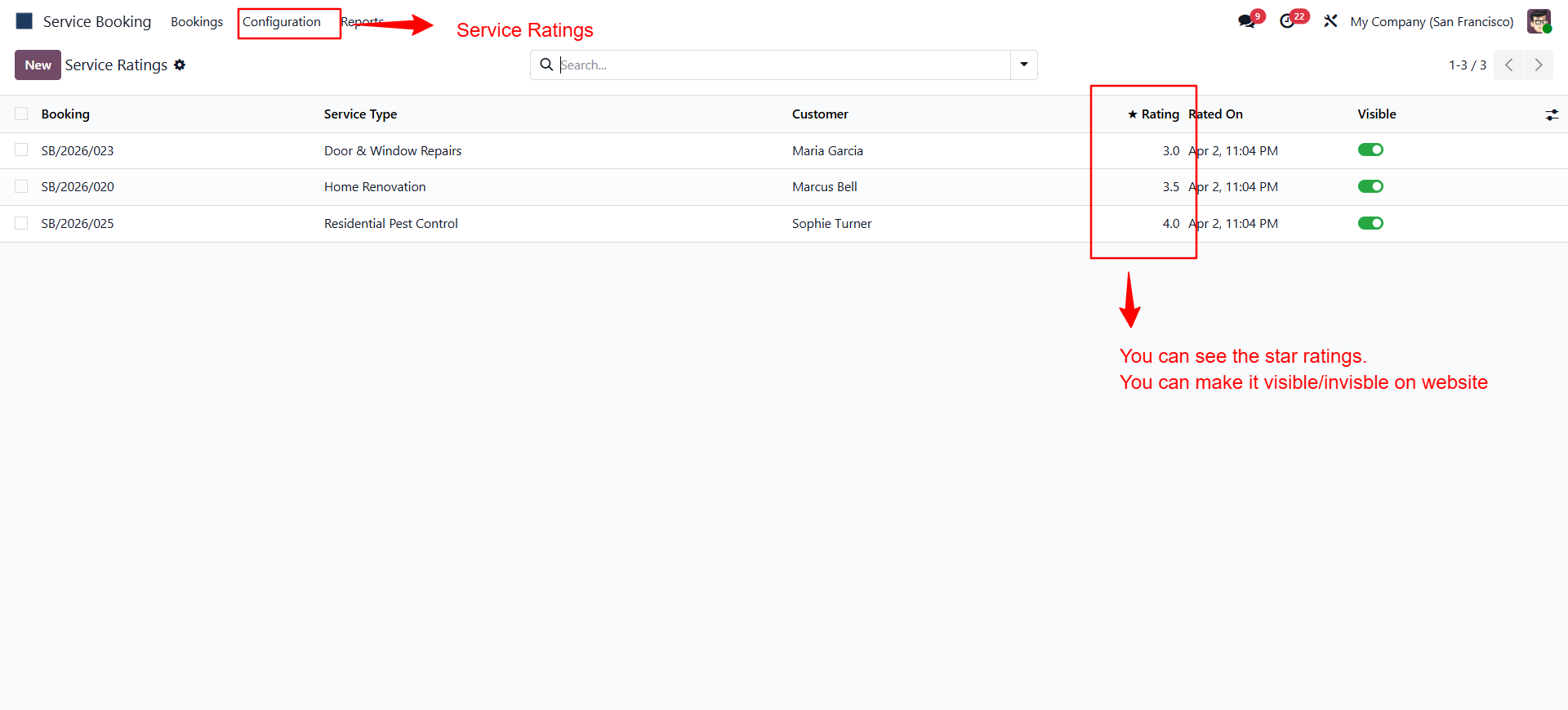
Customers submit ratings from their portal after service completion. Toggle Show on Website on each rating record to control what's publicly visible. The service's average rating and count update automatically.
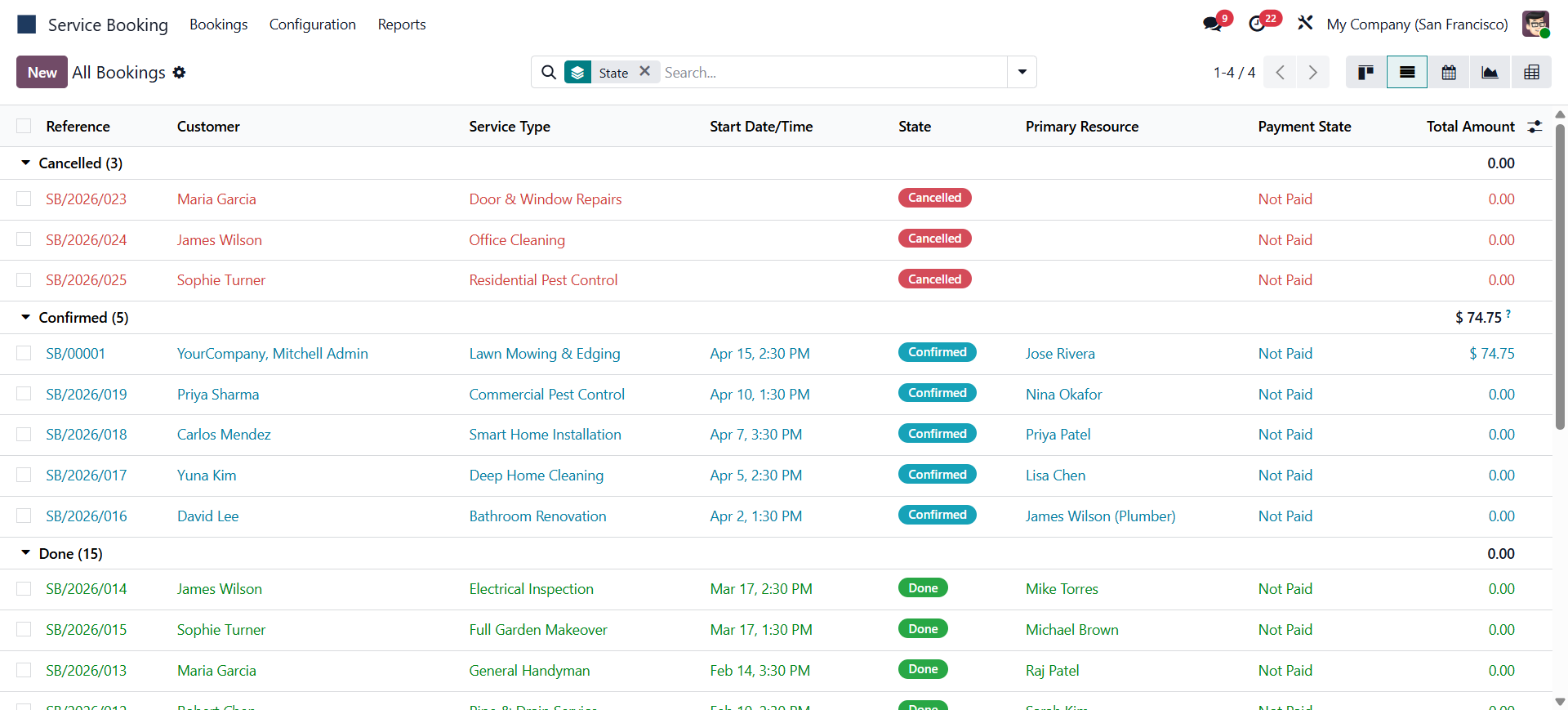
| Button | Transition | What happens |
|---|---|---|
| Confirm | Draft → Confirmed | Slot locked for resource · Sale Order created · Project Task created · Confirmation emails sent to customer & resource |
| Start Service | Confirmed → In Progress | Timesheet start time logged |
| Complete Service | In Progress → Done | Timesheet finalised · Satisfaction survey email sent · Completion email sent |
| Cancel | Any → Cancelled | Slot released back to available · Customer notified |
| Print Report | Any state | Generates PDF booking confirmation |
| State | Description | Customer Can |
|---|---|---|
| Draft | Booking created, awaiting manager confirmation | Reschedule · Update Address · Cancel |
| Confirmed | Slot locked, resources assigned, notifications sent | Reschedule · Update Address · Cancel · Pay Now |
| In Progress | Technician has started the service on-site | View only |
| Done | Service completed, timesheet finalised | Rate This Service |
| Cancelled | Booking cancelled, slot released | View only |
Log in to Odoo and go to Service Booking → Bookings → My Bookings. You will only see bookings assigned to your resource record — other bookings are hidden by the record rule.
| Action | When available | What it does |
|---|---|---|
| Start Service | Booking is Confirmed | Transitions to In Progress, logs timesheet start |
| Complete Service | Booking is In Progress | Transitions to Done, finalises timesheet, triggers survey |
If your manager has configured a portal user for your resource account, you can log in to the website and view your assigned bookings at /my/bookings with the same tab navigation as customers.
When your employee record is linked to your resource profile, any approved leave (hr.leave in validated state) automatically blocks your slots. No manual action is required — the system checks your leave schedule in real time.
Your resource profile can be linked to a specific working schedule (resource.calendar). If no schedule is assigned, the global slot hours configured in Settings apply. Contact your admin to update your schedule.
Click Services in the website navigation. The page shows all published services with HD images, category badges, prices, durations, and star ratings.
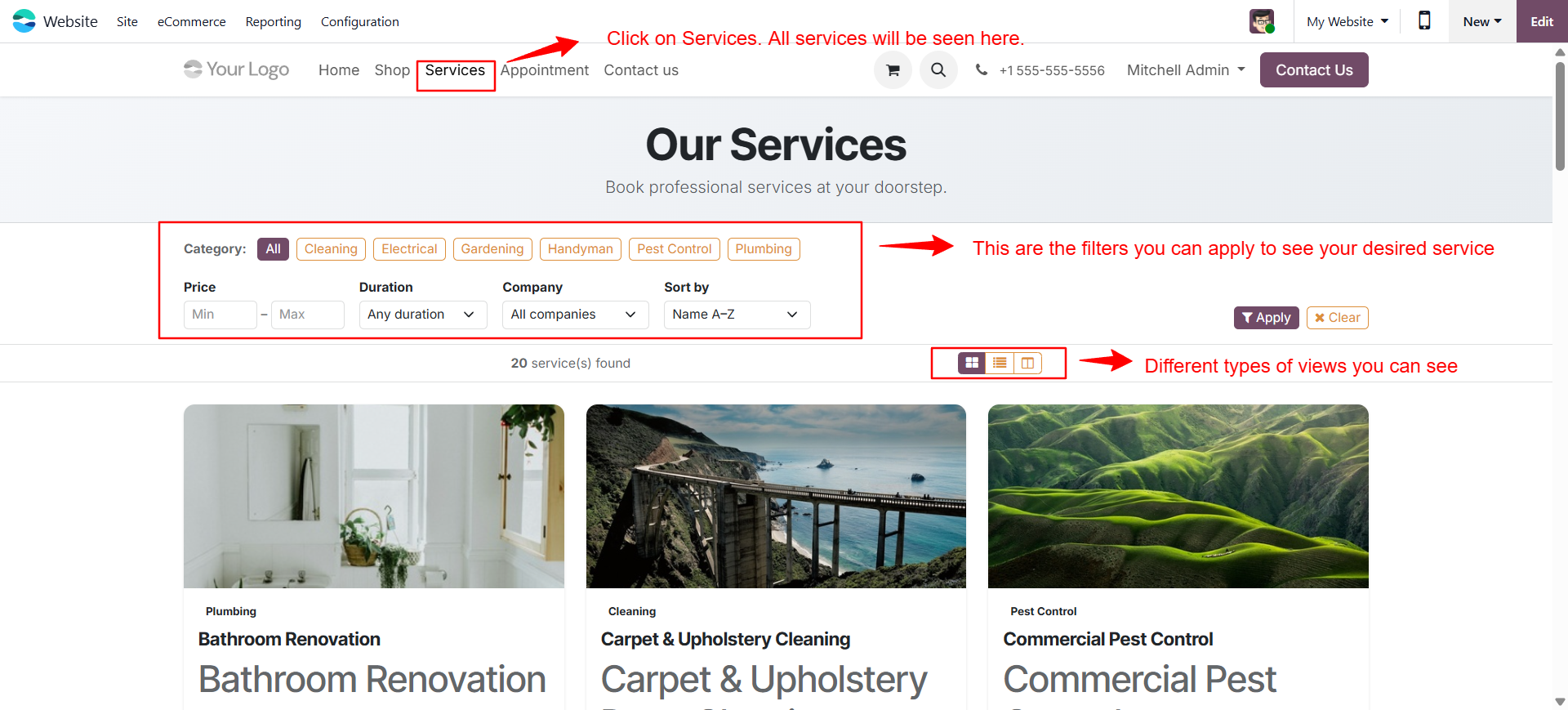
| Filter | Options |
|---|---|
| Category | Cleaning · Handyman · Gardening · Electrical · Plumbing · Pest Control |
| Price | Min and Max number inputs |
| Duration | Any · Under 1 hr · 1–2 hrs · 2–4 hrs · 4+ hrs |
| Company | Shown only when multiple companies exist |
| Sort by | Name A–Z · Name Z–A · Price Low–High · Price High–Low · Highest Rated · Shortest/Longest First |
| Mode | Description |
|---|---|
| ⊞ Grid | 3-column responsive cards with image, badge, price, and Book Now button |
| ☰ List | Table rows with thumbnail, name, price, duration, and rating |
| ▣ Kanban | 2-column horizontal cards with left image strip |
Opens the service detail page at /services/ with the full description, ratings, and booking widget.
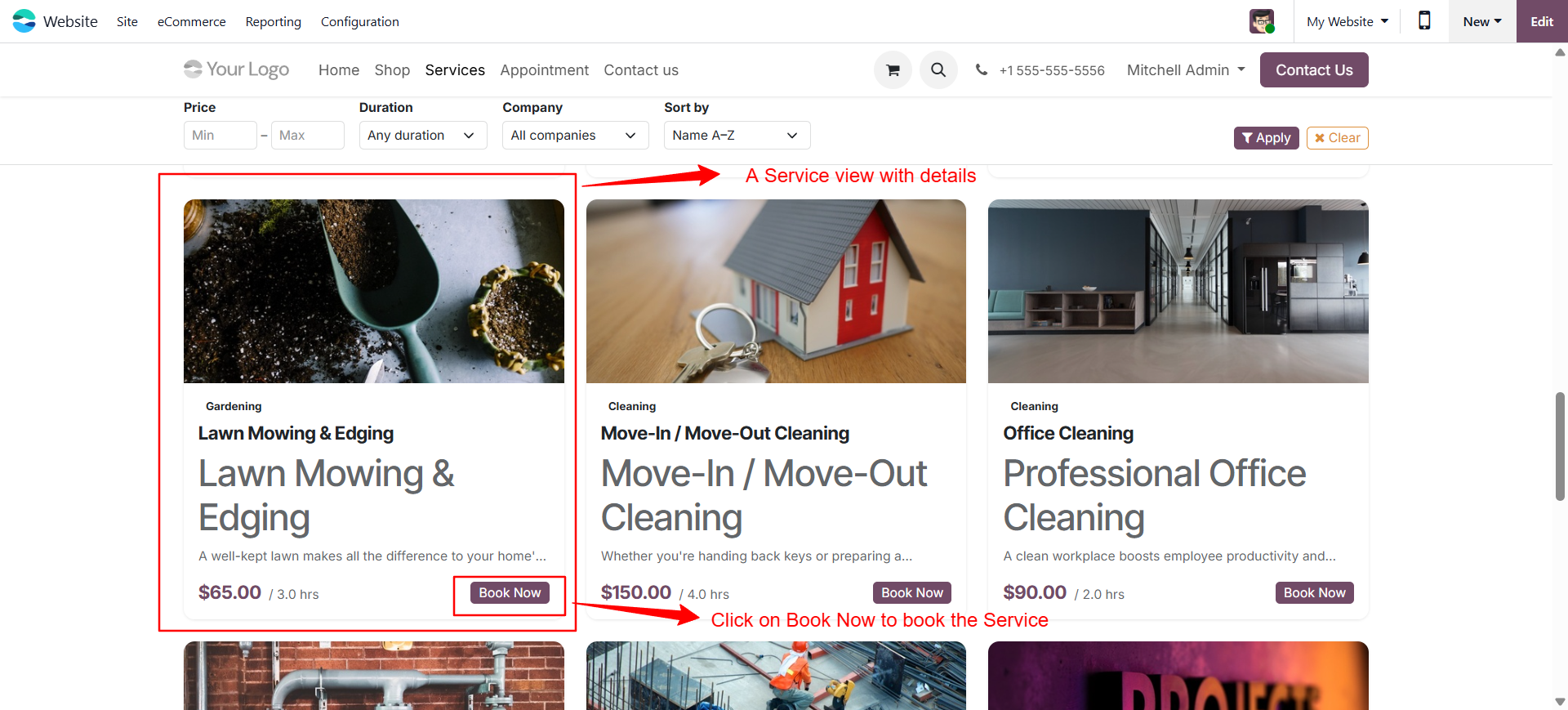
Click a highlighted date in the calendar widget. Greyed-out dates have no available slots within the advance booking window.
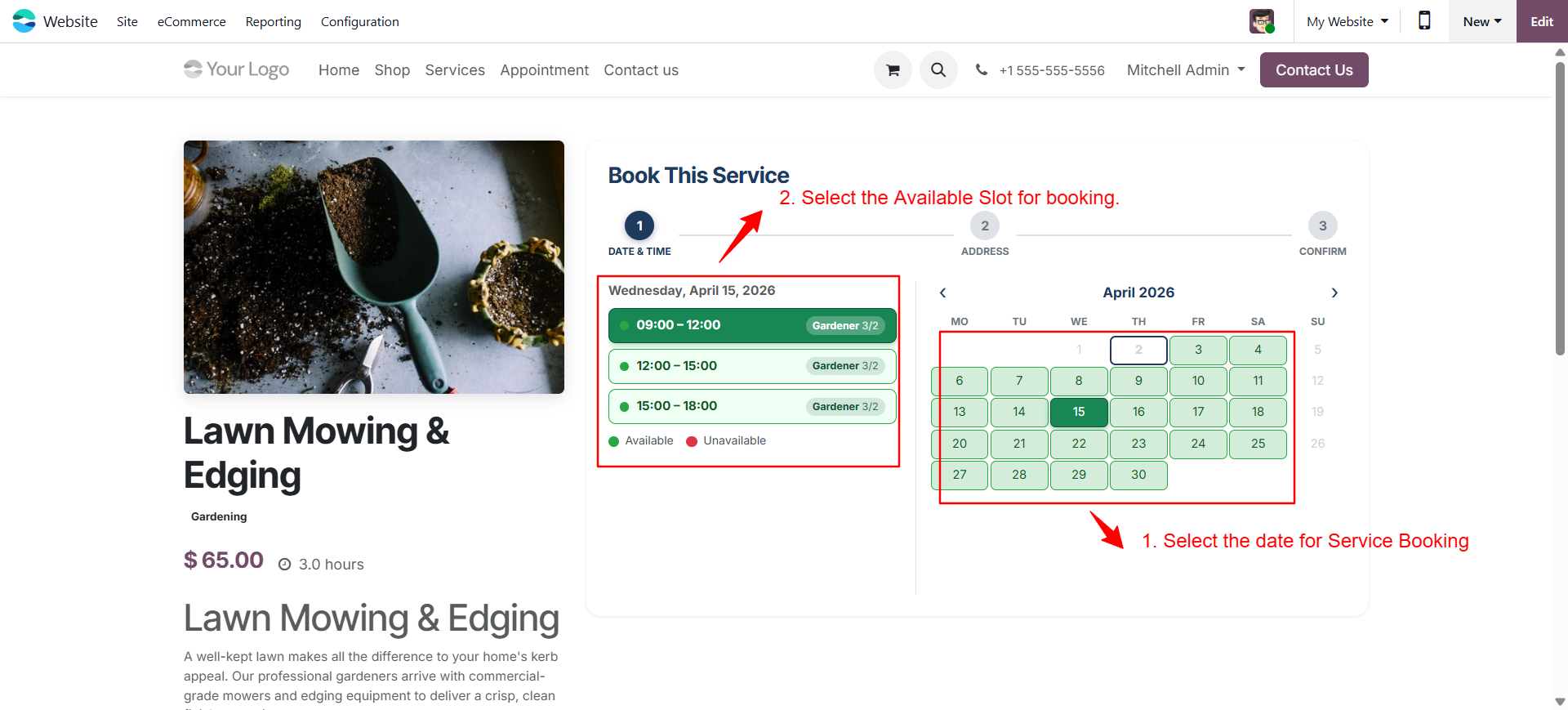
Available slots appear as green circles showing the start–end time. Booked slots appear as red circles and are disabled. Click a green circle to select it.
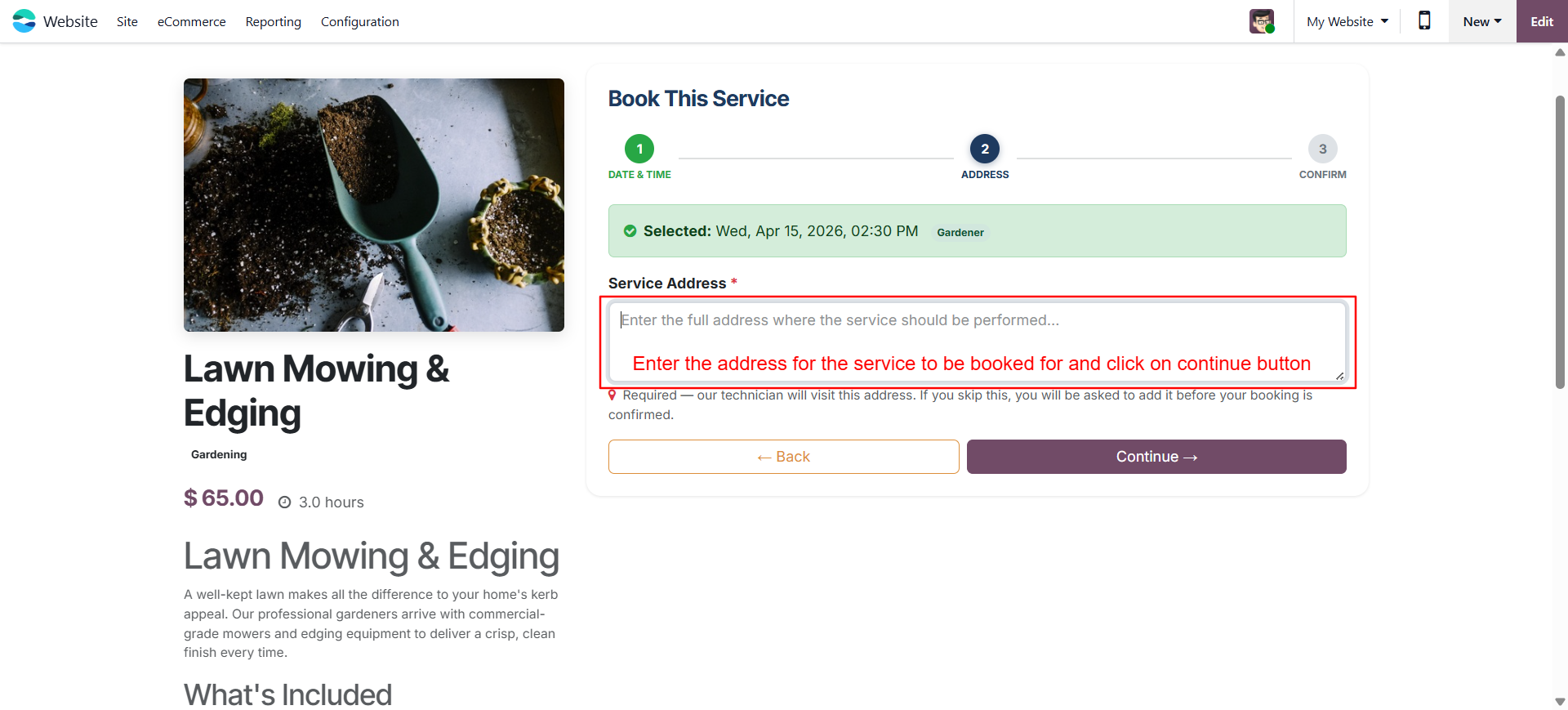
Type the address where the service should be performed. You must be logged in to proceed (sign up or log in is prompted automatically).
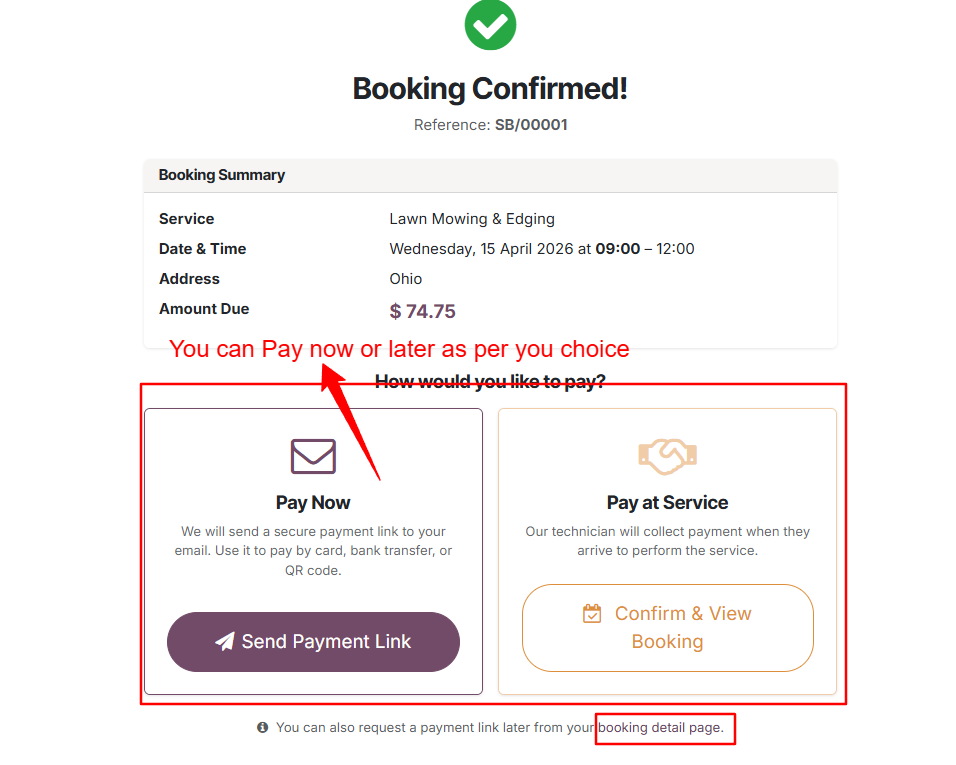
Click Confirm Booking. You will receive a confirmation email and be redirected to your booking detail page. If online payment is enabled, you will be taken to the payment page.
Go to My Account → My Bookings or visit /my/bookings directly.
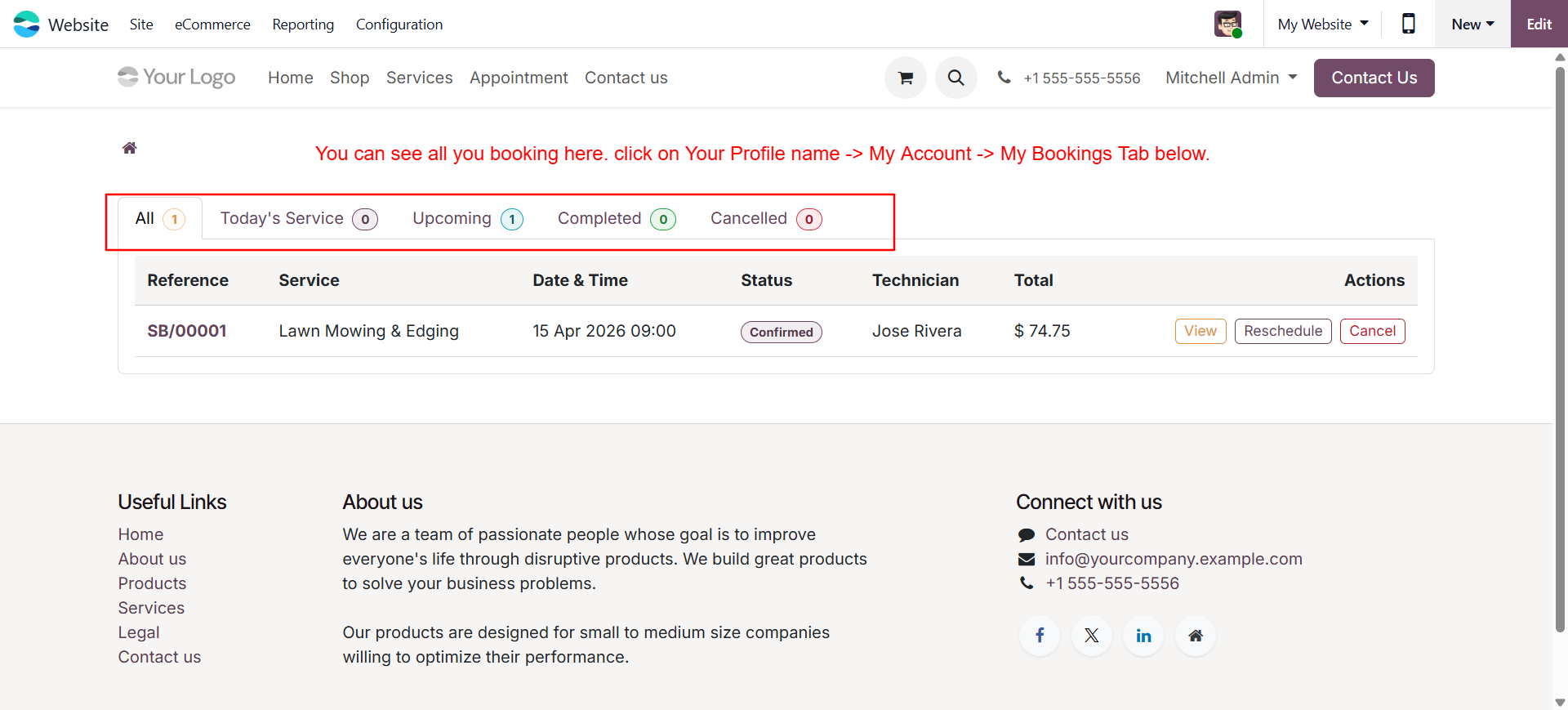
Each tab shows a count badge. Click any booking row to open the booking detail page.
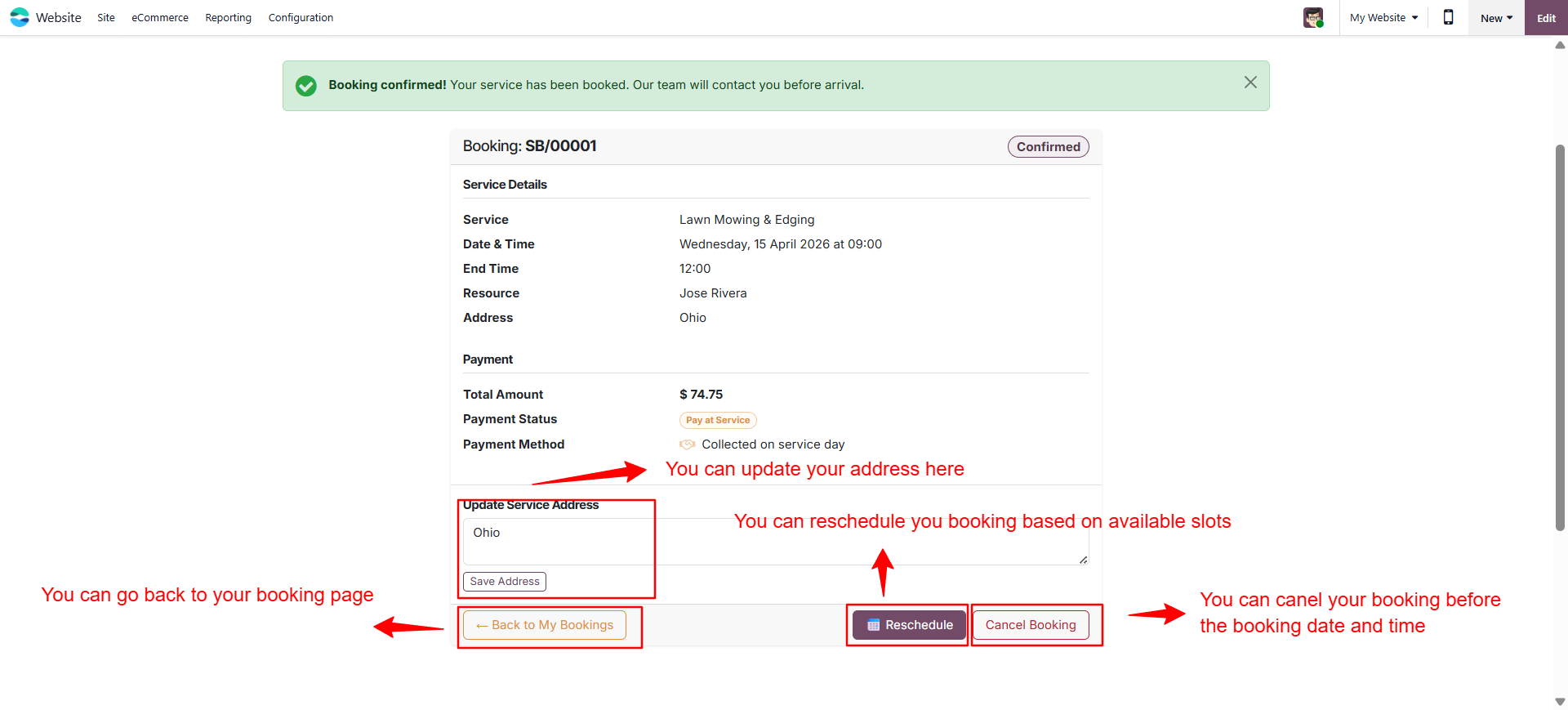
| Button | When shown | What it does |
|---|---|---|
| Reschedule | Draft or Confirmed, before service date | Opens new slot selector; pick a different date and time |
| Update Address | Draft or Confirmed, before service date | Change the service location |
| Cancel Booking | Draft or Confirmed, before service date | Cancels and releases the slot |
| Pay Now | Confirmed, invoice unpaid | Opens payment page for the linked sale order |
| Rate This Service | Done, not yet rated | Opens the 1–5 star rating form |
Appears on the booking detail page once the booking is marked Done and no rating has been submitted yet. Goes to /my/bookings/.
Click one of the five stars (1 = lowest, 5 = highest). Stars light up as you hover.
Add a text review in the box below the stars.
Click Submit Review. You can only rate each booking once. The rating is immediately reflected on the service's public page (subject to admin visibility setting).
Our team at Shadail Technology is here to help you get the most out of Odoo. Reach out for support, customisation, or consulting.
Contact UsOdoo Solutions & Digital Transformation
Office no. 602, Raj Oaks, MTNL Rd,
Gokul Village, Mira Road East,
Mira Bhayandar, MH 401107
© 2026 Shadail Technology • OPL-1 License • Odoo 19 Community & Enterprise
www.shadailtech.com
Service Booking &
Resource Management
A full-featured service booking platform — manage services, resources, equipment, and time slots with an integrated website experience, customer portal, role-based access, and automated notifications.
Define services with category, duration, pricing, HD images, rich HTML description, and SEO metadata. Publish/unpublish individually.
Manage technicians with resource types, working calendars, leave integration, and per-service allocation requirements.
Real-time availability computed per service type, resource allocation, leave schedule — no static slot records needed.
Public /services page with category filters, price range, duration, sort, and 3 view modes (grid / list / kanban). Visual slot picker with green/red circles.
Tabbed /my/bookings page — All, Today, Upcoming, Completed, Cancelled. Reschedule, update address, cancel, and rate from the portal.
1–5 star ratings with review text. Admin controls visibility per rating. Ratings shown on service cards and detail pages.
Sale order auto-created on confirmation, linked to the booking. Pay Now link in portal for unpaid bookings.
Project task created on confirm. Timesheet start/stop logged when resource starts and completes the service.
Confirmation, reminder, completion, and survey emails. Pre-booking reminder configurable in hours. WhatsApp support optional.
Physical assets linked to services. Available quantity auto-calculated from active bookings.
Graph, pivot, kanban, and calendar views. PDF booking confirmation report. Booking report view with grouping and filters.
Three roles — Resource, User, Manager — with granular record rules. Admin auto-assigned to Manager on install.
Go to Settings → Users → [select user] → Service Booking tab and assign a role.
- View own assigned bookings only
- Start & complete their service
- Cannot create or cancel bookings
- View all company bookings
- Create and edit bookings
- Cannot delete
- Full unrestricted access
- Create, edit, delete bookings
- Manage all configuration
Go to Settings → Service Booking section:
| Setting | Description | Default |
|---|---|---|
| Default Slot Start Hour | Working day start (e.g. 9.0 = 09:00) | 9.0 |
| Default Slot End Hour | Working day end (e.g. 18.0 = 18:00) | 18.0 |
| Advance Booking Min Hours | Minimum hours ahead a customer can book | 1.0 |
| Advance Booking Max Qty | How far ahead bookings are accepted (quantity) | 5 |
| Advance Booking Max Duration | Unit for the above: days / weeks / months / years | days |
| Reminder Email Hours Before | Hours before service to send reminder email | 24 |
Go to Service Booking → Configuration → Resource Types → New.
Examples: Cleaning Specialist, Electrician, Plumber, Supervisor.
| Field | Description |
|---|---|
| Name | Display name (e.g. "Senior Technician") |
| Code | Short code (e.g. "ST") |
| Active | Uncheck to retire a type |
Go to Service Booking → Configuration → Service Types → New.
| Field | Description |
|---|---|
| Service Name | Shown on the website and in all booking records |
| Category | Cleaning / Handyman / Gardening / Electrical / Plumbing / Pest Control / Other |
| Duration (hours) | Length of one booking slot |
| Travel Gap (hours) | Buffer added after slot before resource is free again |
| Service Product | Links to a product of type Service for invoicing |
| Image | HD image shown on website (1024×1024 max, auto-resized) |
| Published on Website | Toggle to make bookable online |
| Description | Rich HTML shown on the service detail page |
| Resource Allocation tab | Which resource types + quantities are required per booking |
| Availability Schedule tab | Working hours per weekday for this service |
Go to Service Booking → Configuration → Resources → New.
| Field | Description |
|---|---|
| Name | Resource display name |
| Resource Type | Assign to a type created in Step 3 |
| Employee | Link to hr.employee — enables leave checks |
| Working Schedule | Link to resource.calendar; overrides global slot hours |
| Company | For multi-company setups |
hr.leave, state=validate) and blocks those periods automatically.
Go to Service Booking → Configuration → Equipment → New.
Link equipment items to service types. Available quantity is auto-calculated as Total − units in active bookings.
Open each service type form and toggle Published on Website to make it bookable at /services. Only published services are visible to the public.
Go to Service Booking → Configuration → Service Ratings.
Customers submit ratings from their portal after service completion. Toggle Show on Website on each rating record to control what's publicly visible. The service's average rating and count update automatically.
| Button | Transition | What happens |
|---|---|---|
| Confirm | Draft → Confirmed | Slot locked for resource · Sale Order created · Project Task created · Confirmation emails sent to customer & resource |
| Start Service | Confirmed → In Progress | Timesheet start time logged |
| Complete Service | In Progress → Done | Timesheet finalised · Satisfaction survey email sent · Completion email sent |
| Cancel | Any → Cancelled | Slot released back to available · Customer notified |
| Print Report | Any state | Generates PDF booking confirmation |
| State | Description | Customer Can |
|---|---|---|
| Draft | Booking created, awaiting manager confirmation | Reschedule · Update Address · Cancel |
| Confirmed | Slot locked, resources assigned, notifications sent | Reschedule · Update Address · Cancel · Pay Now |
| In Progress | Technician has started the service on-site | View only |
| Done | Service completed, timesheet finalised | Rate This Service |
| Cancelled | Booking cancelled, slot released | View only |
Log in to Odoo and go to Service Booking → Bookings → My Bookings. You will only see bookings assigned to your resource record — other bookings are hidden by the record rule.
| Action | When available | What it does |
|---|---|---|
| Start Service | Booking is Confirmed | Transitions to In Progress, logs timesheet start |
| Complete Service | Booking is In Progress | Transitions to Done, finalises timesheet, triggers survey |
If your manager has configured a portal user for your resource account, you can log in to the website and view your assigned bookings at /my/bookings with the same tab navigation as customers.
When your employee record is linked to your resource profile, any approved leave (hr.leave in validated state) automatically blocks your slots. No manual action is required — the system checks your leave schedule in real time.
Your resource profile can be linked to a specific working schedule (resource.calendar). If no schedule is assigned, the global slot hours configured in Settings apply. Contact your admin to update your schedule.
Click Services in the website navigation. The page shows all published services with HD images, category badges, prices, durations, and star ratings.
| Filter | Options |
|---|---|
| Category | Cleaning · Handyman · Gardening · Electrical · Plumbing · Pest Control |
| Price | Min and Max number inputs |
| Duration | Any · Under 1 hr · 1–2 hrs · 2–4 hrs · 4+ hrs |
| Company | Shown only when multiple companies exist |
| Sort by | Name A–Z · Name Z–A · Price Low–High · Price High–Low · Highest Rated · Shortest/Longest First |
| Mode | Description |
|---|---|
| ⊞ Grid | 3-column responsive cards with image, badge, price, and Book Now button |
| ☰ List | Table rows with thumbnail, name, price, duration, and rating |
| ▣ Kanban | 2-column horizontal cards with left image strip |
Opens the service detail page at /services/ with the full description, ratings, and booking widget.
Click a highlighted date in the calendar widget. Greyed-out dates have no available slots within the advance booking window.
Available slots appear as green circles showing the start–end time. Booked slots appear as red circles and are disabled. Click a green circle to select it.
Type the address where the service should be performed. You must be logged in to proceed (sign up or log in is prompted automatically).
Click Confirm Booking. You will receive a confirmation email and be redirected to your booking detail page. If online payment is enabled, you will be taken to the payment page.
Go to My Account → My Bookings or visit /my/bookings directly.
Each tab shows a count badge. Click any booking row to open the booking detail page.
| Button | When shown | What it does |
|---|---|---|
| Reschedule | Draft or Confirmed, before service date | Opens new slot selector; pick a different date and time |
| Update Address | Draft or Confirmed, before service date | Change the service location |
| Cancel Booking | Draft or Confirmed, before service date | Cancels and releases the slot |
| Pay Now | Confirmed, invoice unpaid | Opens payment page for the linked sale order |
| Rate This Service | Done, not yet rated | Opens the 1–5 star rating form |
Appears on the booking detail page once the booking is marked Done and no rating has been submitted yet. Goes to /my/bookings/.
Click one of the five stars (1 = lowest, 5 = highest). Stars light up as you hover.
Add a text review in the box below the stars.
Click Submit Review. You can only rate each booking once. The rating is immediately reflected on the service's public page (subject to admin visibility setting).
Our team at Shadail Technology is here to help you get the most out of Odoo. Reach out for support, customisation, or consulting.
Contact UsOdoo Solutions & Digital Transformation
Office no. 602, Raj Oaks, MTNL Rd,
Gokul Village, Mira Road East,
Mira Bhayandar, MH 401107
© 2026 Shadail Technology • OPL-1 License • Odoo 19 Community & Enterprise
www.shadailtech.com