
Backend Payment Stripe
PCI-compliant Stripe card and ACH token management for the Odoo 19 backend — collect credit cards via Stripe Elements and bank accounts via SetupIntents without raw payment data ever touching the Odoo server.
🛡️ PCI DSS Compliance — Raw card data never touches the Odoo server
Cards are collected via Stripe Elements (hosted iFrame). ACH details are tokenised via stripe.confirmUsBankAccountSetup on Stripe's servers. Odoo only receives a PaymentMethod ID — never raw card numbers or account data.
PCI-Compliant Card Collection
Cards collected exclusively via Stripe Elements iFrame. A PaymentMethod ID is returned to Odoo after confirmation — raw card numbers never reach Odoo.
ACH Bank Account Support
US bank accounts tokenised via stripe.confirmUsBankAccountSetup. Supports instant verification (test) and micro-deposit verification (production).
Stripe Customer Management
Create and update Stripe Customer objects (cus_xxx) directly from the Partner form. Customer ID stored and reused for all tokens on that partner.
SetupIntent Flow
Uses off_session SetupIntents for recurring backend-initiated charges — the industry-standard approach for saving payment methods without a checkout.
Rich Token Metadata
Cards: brand, last4, expiry month/year. ACH: bank name, account last4, routing number, verification status and URL.
Full Token Lifecycle
View, set as default, verify ACH tokens, soft-delete in Odoo, or hard-detach from Stripe — all from the partner's Stripe tab.
Payment Wizard Integration
Auto-detects Stripe when processing payments. Shows card/ACH toggle and inline token collection in the payment wizard from any business document.
Micro-Deposit Verification
Automatic instant verification in Stripe test mode. In production, generates a Stripe-hosted verification URL for the customer to confirm micro-deposits.
Token Types
💳 Credit / Debit Card
- Collected via Stripe Elements iFrame
- SetupIntent with
usage: off_session - Immediately usable — no verification needed
- Stores: brand, last4, expiry month/year
🏦 ACH Bank Account
- Collected via Stripe.js ACH form
- SetupIntent with
us_bank_account - Instant (test) or micro-deposit (prod) verification
- Stores: bank name, last4, routing number, status
shd_backend_payment_core and Odoo's built-in payment_stripe must be installed before this module.Install Dependencies
Ensure these modules are installed first:
shd_backend_payment_core— Shadail Technology Backend Payment Corepayment_stripe— Odoo's built-in Stripe provideraccount— Accounting module
Configure Stripe Payment Provider
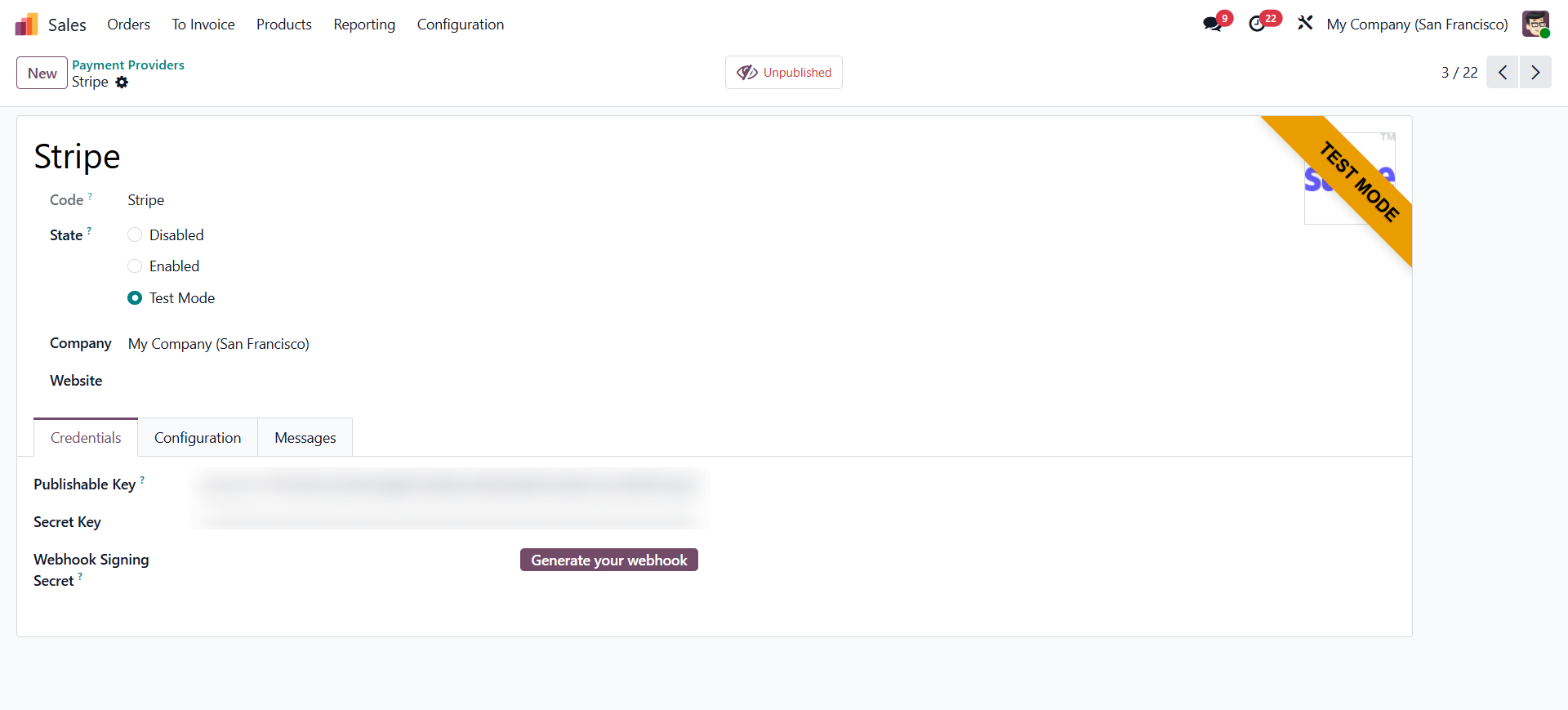
Configure the stripe payment provider. Go to Accounting → Configuration → Payment Providers → Stripe.
- Enter your Publishable Key and Secret Key from your Stripe dashboard.
- Set state to Test for sandbox testing or Enabled for live.
- Ensure Allow Saving Payment Methods is enabled.
Install This Module
Go to Apps, search for SHD Backend Payment Stripe, and click Install.
Create Stripe Customers for Partners
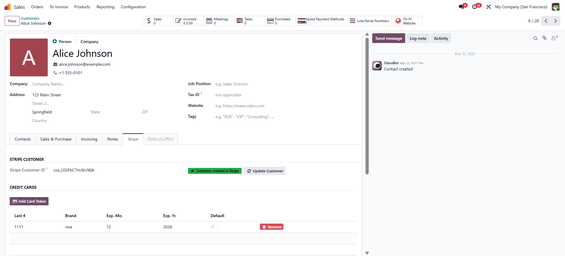
Stripe customer creation from partner form view. Open any customer partner record. Go to the Stripe tab. Click Create Stripe Customer. The
cus_xxxID is saved on the partner automatically.Add Payment Tokens
On the Stripe tab, click Add Card Token to open the Stripe Elements card dialog, or Add Bank Account to open the ACH collection form.
4242 4242 4242 4242 (any future expiry, any CVC) to test card token creation. For ACH testing, use routing 110000000 and account 000123456789.Stripe Tab on the Partner Form
| Section | Available Actions |
|---|---|
| Stripe Customer | Create Stripe Customer · Update Customer (pushes name/email/phone) |
| Credit Card Tokens | View saved cards (brand, last4, expiry) · Add Card Token · Set Default · Soft-delete · Hard-detach from Stripe |
| ACH Bank Account Tokens | View saved accounts (bank, last4, status) · Add Bank Account · Verify ACH · Set Default · Soft-delete · Hard-detach |
Adding a Credit Card Token
Create Stripe Customer First
Ensure the partner has a Stripe Customer ID (
cus_xxx). Click Create Stripe Customer on the Stripe tab if not yet created.Click Add Card Token
A Stripe Elements dialog opens — the card input field is a Stripe-hosted iFrame. Enter card number, expiry, and CVC directly into the Stripe form.
Confirm
Odoo calls Stripe's SetupIntent API to confirm and save the card. A
payment.tokenrecord is created automatically with brand, last4, and expiry metadata.
Adding an ACH Bank Account Token
Click Add Bank Account
Opens the ACH collection dialog. Enter bank routing number, account number, and account holder name.
Stripe Tokenises the Details
stripe.confirmUsBankAccountSetupis called — bank details are sent directly to Stripe's servers and tokenised. Only a PaymentMethod ID is returned to Odoo.Verification
In test mode, verification happens automatically. In production, the token is saved with status Pending and a Stripe-hosted verification URL is stored for the customer to complete micro-deposit verification.
ACH Verification Status
✅ Verified
Token is ready to use for payments. Micro-deposit verification completed (or auto-verified in test mode).
⏳ Pending
Awaiting micro-deposit verification. Customer must visit the Stripe-hosted URL to confirm the two small deposits. Click Verify in Odoo to re-attempt automatic verification.
Token Management Actions
| Action | Effect |
|---|---|
| Set as Default | Marks is_default = True on the token — shown first in payment wizard dropdowns |
| Soft Delete | Archives the token in Odoo (active = False). Does NOT detach from Stripe — token can be re-activated if needed. |
| Detach from Stripe | Calls Stripe's /payment_methods/{id}/detach API AND archives in Odoo. Permanently removes the payment method from Stripe. |
| Verify ACH | Attempts to verify a pending ACH token via SetupIntent API. Updates status to Verified if successful. |
PCI DSS Compliance Architecture
| Token Type | Collection Method | Data Flow |
|---|---|---|
| Credit Card | Stripe Elements (hosted iFrame) | Card data → Stripe servers → PaymentMethod ID returned to Odoo. Raw card numbers never reach Odoo. |
| ACH Bank Account | stripe.confirmUsBankAccountSetup | Bank details → Stripe SetupIntent → PaymentMethod ID returned. Routing/account numbers never stored in Odoo. |
Module Dependencies
shd_backend_payment_core, payment_stripe, account | License: OPL-1Need Help Configuring Stripe on Odoo?
Our Odoo payment integration specialists at Shadail Technology can set up, test, and customise your Stripe integration.
Contact UsBackend Payment Stripe
PCI-compliant Stripe card and ACH token management for the Odoo 19 backend — collect credit cards via Stripe Elements and bank accounts via SetupIntents without raw payment data ever touching the Odoo server.
🛡️ PCI DSS Compliance — Raw card data never touches the Odoo server
Cards are collected via Stripe Elements (hosted iFrame). ACH details are tokenised via stripe.confirmUsBankAccountSetup on Stripe's servers. Odoo only receives a PaymentMethod ID — never raw card numbers or account data.
PCI-Compliant Card Collection
Cards collected exclusively via Stripe Elements iFrame. A PaymentMethod ID is returned to Odoo after confirmation — raw card numbers never reach Odoo.
ACH Bank Account Support
US bank accounts tokenised via stripe.confirmUsBankAccountSetup. Supports instant verification (test) and micro-deposit verification (production).
Stripe Customer Management
Create and update Stripe Customer objects (cus_xxx) directly from the Partner form. Customer ID stored and reused for all tokens on that partner.
SetupIntent Flow
Uses off_session SetupIntents for recurring backend-initiated charges — the industry-standard approach for saving payment methods without a checkout.
Rich Token Metadata
Cards: brand, last4, expiry month/year. ACH: bank name, account last4, routing number, verification status and URL.
Full Token Lifecycle
View, set as default, verify ACH tokens, soft-delete in Odoo, or hard-detach from Stripe — all from the partner's Stripe tab.
Payment Wizard Integration
Auto-detects Stripe when processing payments. Shows card/ACH toggle and inline token collection in the payment wizard from any business document.
Micro-Deposit Verification
Automatic instant verification in Stripe test mode. In production, generates a Stripe-hosted verification URL for the customer to confirm micro-deposits.
Token Types
💳 Credit / Debit Card
- Collected via Stripe Elements iFrame
- SetupIntent with
usage: off_session - Immediately usable — no verification needed
- Stores: brand, last4, expiry month/year
🏦 ACH Bank Account
- Collected via Stripe.js ACH form
- SetupIntent with
us_bank_account - Instant (test) or micro-deposit (prod) verification
- Stores: bank name, last4, routing number, status
shd_backend_payment_core and Odoo's built-in payment_stripe must be installed before this module.Install Dependencies
Ensure these modules are installed first:
shd_backend_payment_core— Shadail Technology Backend Payment Corepayment_stripe— Odoo's built-in Stripe provideraccount— Accounting module
Configure Stripe Payment Provider
Configure the stripe payment provider. Go to Accounting → Configuration → Payment Providers → Stripe.
- Enter your Publishable Key and Secret Key from your Stripe dashboard.
- Set state to Test for sandbox testing or Enabled for live.
- Ensure Allow Saving Payment Methods is enabled.
Install This Module
Go to Apps, search for SHD Backend Payment Stripe, and click Install.
Create Stripe Customers for Partners
Stripe customer creation from partner form view. Open any customer partner record. Go to the Stripe tab. Click Create Stripe Customer. The
cus_xxxID is saved on the partner automatically.Add Payment Tokens
On the Stripe tab, click Add Card Token to open the Stripe Elements card dialog, or Add Bank Account to open the ACH collection form.
4242 4242 4242 4242 (any future expiry, any CVC) to test card token creation. For ACH testing, use routing 110000000 and account 000123456789.Stripe Tab on the Partner Form
| Section | Available Actions |
|---|---|
| Stripe Customer | Create Stripe Customer · Update Customer (pushes name/email/phone) |
| Credit Card Tokens | View saved cards (brand, last4, expiry) · Add Card Token · Set Default · Soft-delete · Hard-detach from Stripe |
| ACH Bank Account Tokens | View saved accounts (bank, last4, status) · Add Bank Account · Verify ACH · Set Default · Soft-delete · Hard-detach |
Adding a Credit Card Token
Create Stripe Customer First
Ensure the partner has a Stripe Customer ID (
cus_xxx). Click Create Stripe Customer on the Stripe tab if not yet created.Click Add Card Token
A Stripe Elements dialog opens — the card input field is a Stripe-hosted iFrame. Enter card number, expiry, and CVC directly into the Stripe form.
Confirm
Odoo calls Stripe's SetupIntent API to confirm and save the card. A
payment.tokenrecord is created automatically with brand, last4, and expiry metadata.
Adding an ACH Bank Account Token
Click Add Bank Account
Opens the ACH collection dialog. Enter bank routing number, account number, and account holder name.
Stripe Tokenises the Details
stripe.confirmUsBankAccountSetupis called — bank details are sent directly to Stripe's servers and tokenised. Only a PaymentMethod ID is returned to Odoo.Verification
In test mode, verification happens automatically. In production, the token is saved with status Pending and a Stripe-hosted verification URL is stored for the customer to complete micro-deposit verification.
ACH Verification Status
✅ Verified
Token is ready to use for payments. Micro-deposit verification completed (or auto-verified in test mode).
⏳ Pending
Awaiting micro-deposit verification. Customer must visit the Stripe-hosted URL to confirm the two small deposits. Click Verify in Odoo to re-attempt automatic verification.
Token Management Actions
| Action | Effect |
|---|---|
| Set as Default | Marks is_default = True on the token — shown first in payment wizard dropdowns |
| Soft Delete | Archives the token in Odoo (active = False). Does NOT detach from Stripe — token can be re-activated if needed. |
| Detach from Stripe | Calls Stripe's /payment_methods/{id}/detach API AND archives in Odoo. Permanently removes the payment method from Stripe. |
| Verify ACH | Attempts to verify a pending ACH token via SetupIntent API. Updates status to Verified if successful. |
PCI DSS Compliance Architecture
| Token Type | Collection Method | Data Flow |
|---|---|---|
| Credit Card | Stripe Elements (hosted iFrame) | Card data → Stripe servers → PaymentMethod ID returned to Odoo. Raw card numbers never reach Odoo. |
| ACH Bank Account | stripe.confirmUsBankAccountSetup | Bank details → Stripe SetupIntent → PaymentMethod ID returned. Routing/account numbers never stored in Odoo. |
Module Dependencies
shd_backend_payment_core, payment_stripe, account | License: OPL-1Need Help Configuring Stripe on Odoo?
Our Odoo payment integration specialists at Shadail Technology can set up, test, and customise your Stripe integration.
Contact Us