Stock Pick
Cart
Barcode-driven warehouse picking with physical carts and tote slots. Configure tote types and cart types, generate waves with the Manual Wave Wizard, assign one tote per transfer, and complete the batch in the Odoo Barcode app with guided cart and source-location scans.
Cart & Tote Structure
Set up tote types, cart types, physical pick carts, and individual tote barcodes so each warehouse can work with a repeatable cart layout.
Barcode-driven Scanning
Guide pickers through the barcode batch flow with a clear Scan Pick Cart step followed by source-location and product scans for each assigned transfer.
Manual Wave Wizard
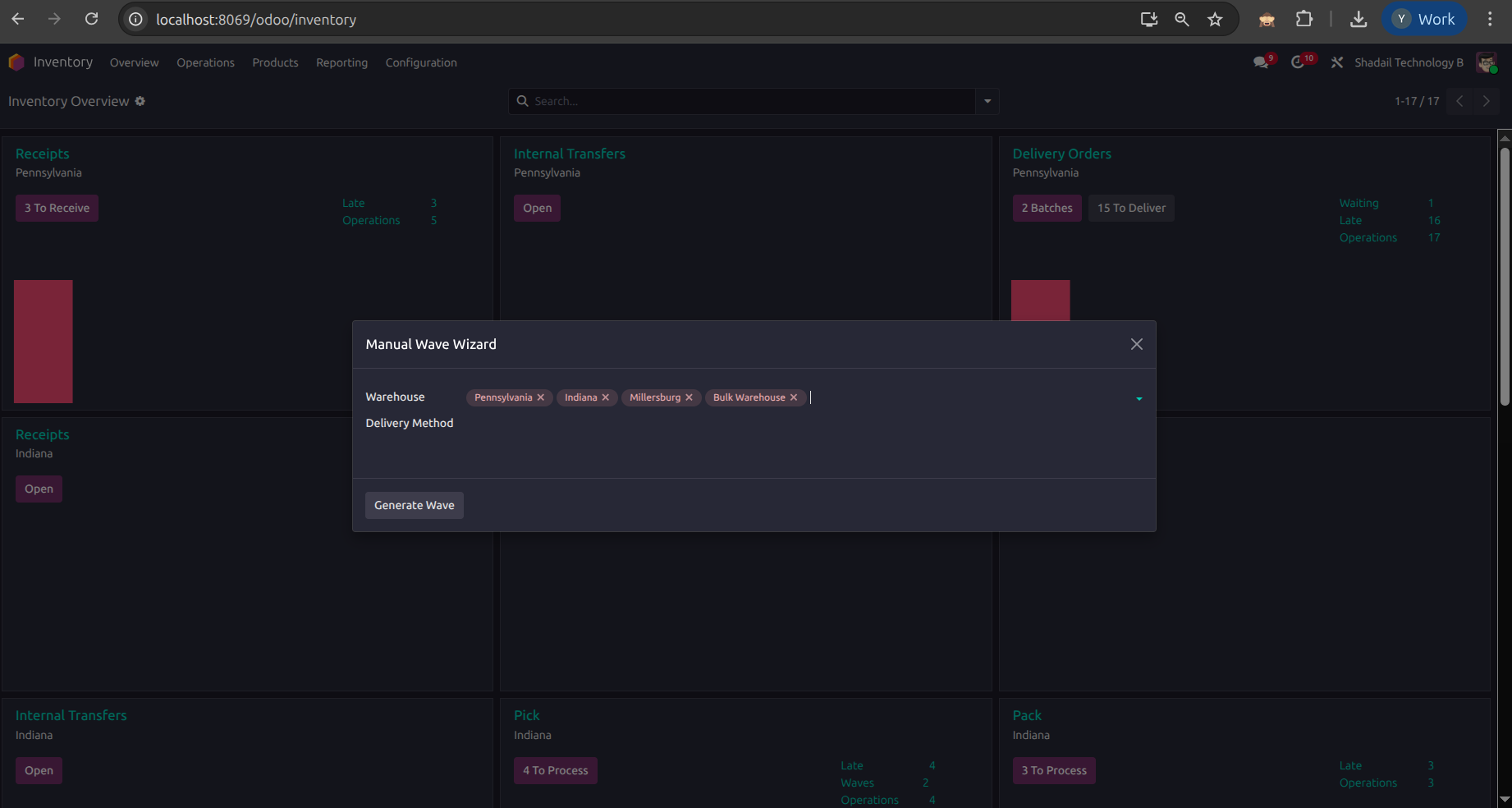
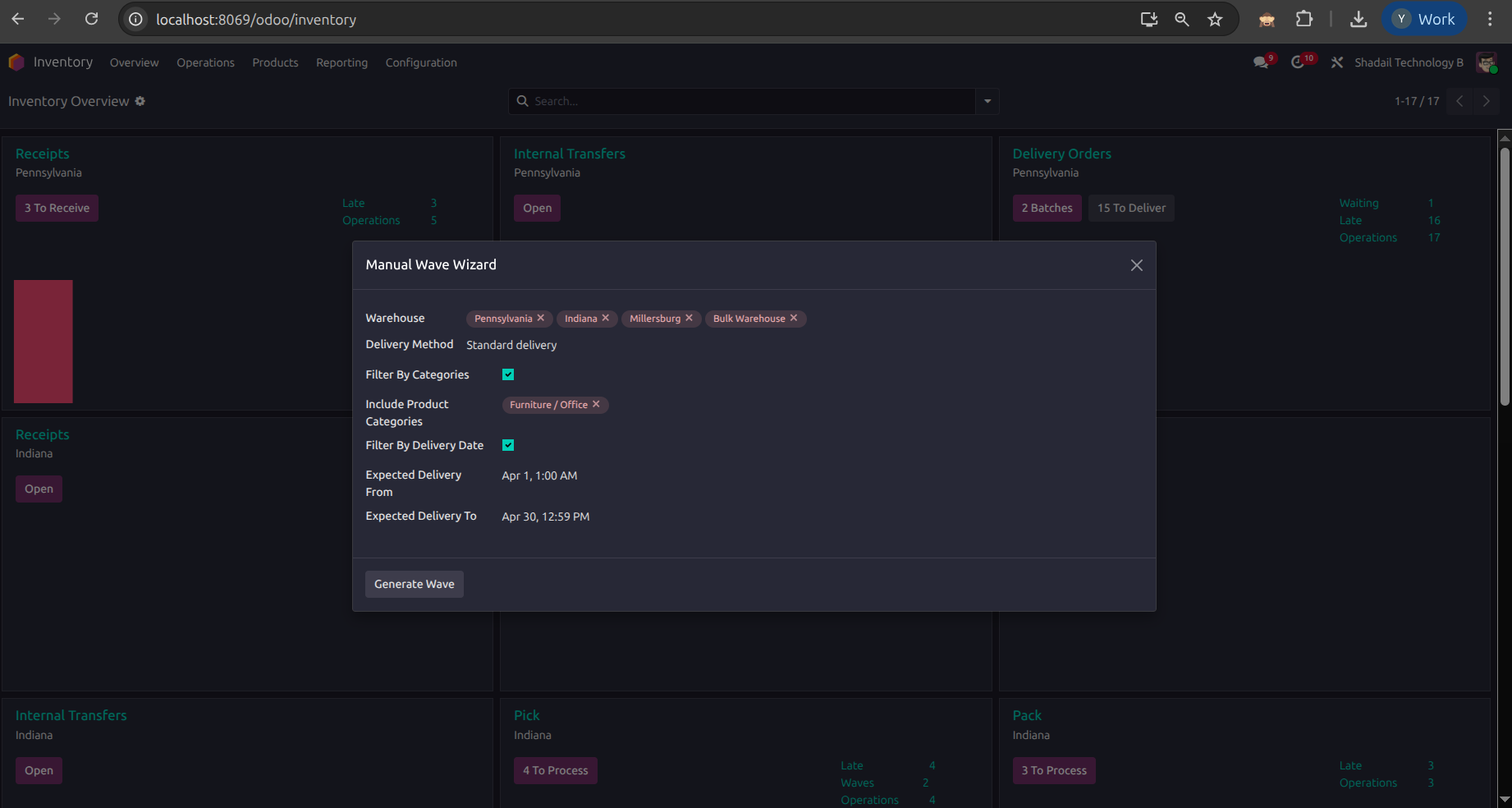
Create waves from ready pickings by warehouse and carrier, with optional delivery-date and product-category filters, directly from Inventory operations.
Wave Transfer Visibility
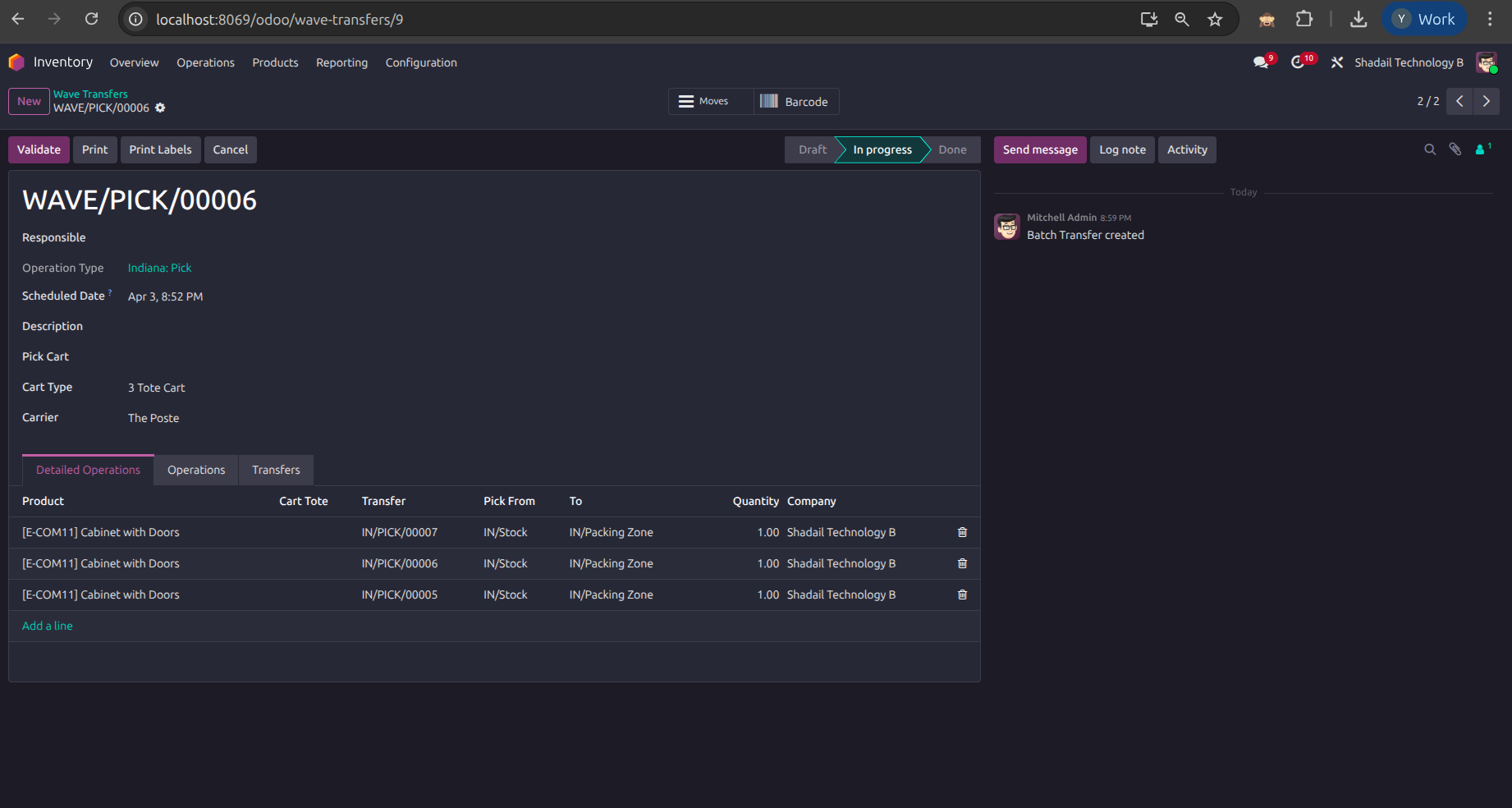
Review each wave with its assigned pick cart, cart type, carrier, detailed operations, and linked transfers before the team starts picking.
Tote Label Reports
Print tote labels from the wave transfer so every tote slot has a scannable barcode linked to the correct transfer and destination.
Warehouse-specific Cart Pools
Create separate cart sets for each warehouse and reuse the same module across different tote sizes such as 3-tote, 4-tote, and 9-tote carts.
Capacity-based Grouping
Match ready pickings to tote capacity and split them into waves sized to the number of totes available on the selected cart type.
Barcode Batch Queue
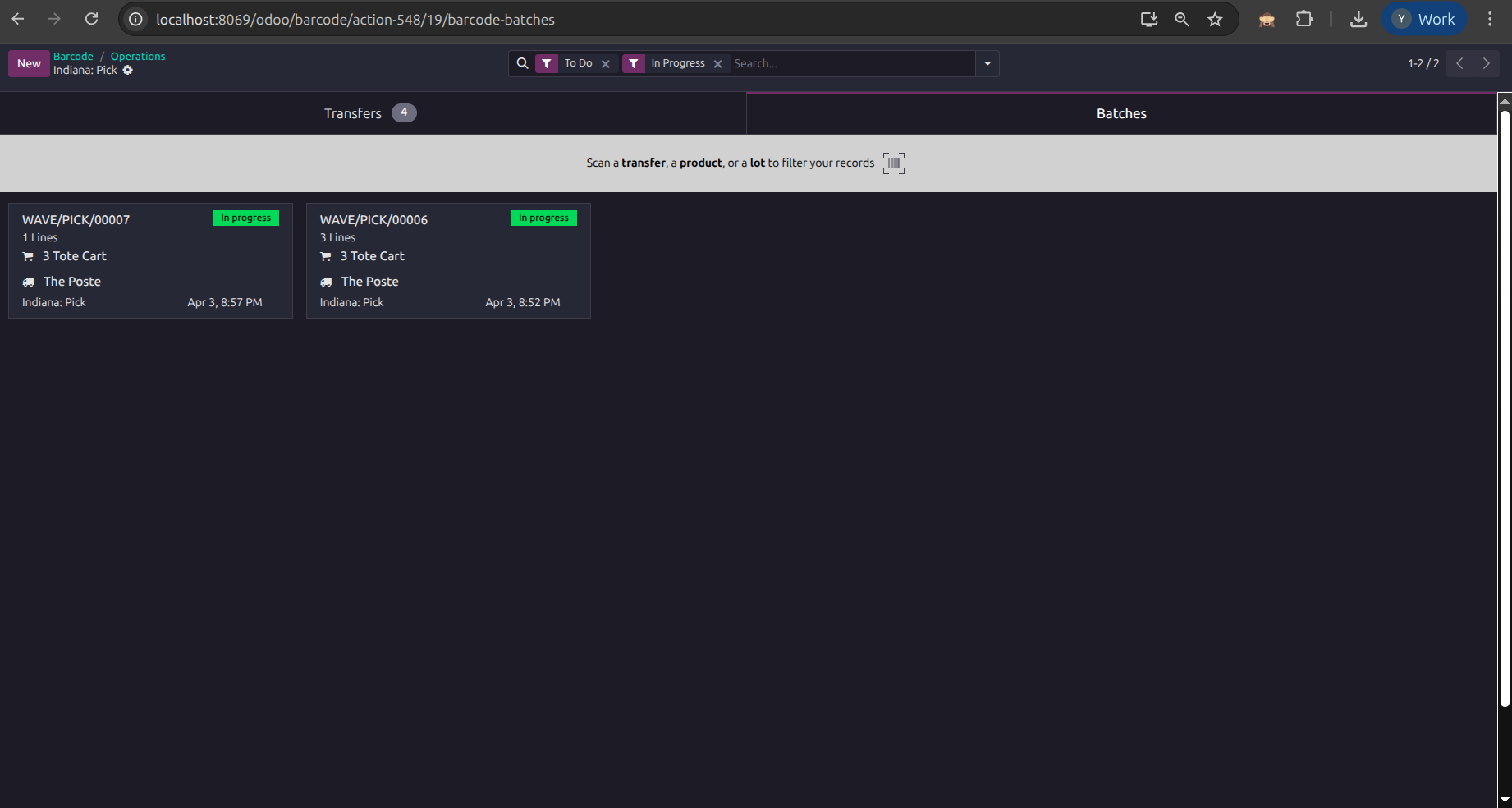
See in-progress wave batches in the Barcode app with the cart type, carrier, and line count shown before the picker opens the job.
Transfer Traceability
Completed pickings keep their tote reference and wave history, making it easy to trace which tote/cart combination was used for each transfer.
-
Install the Module
Ensure the following modules are installed first: Inventory (
stock), Barcode (stock_barcode), Batch Picking (stock_picking_batch), Batch Picking Barcode (stock_barcode_picking_batch), and Delivery (delivery). Then install Stock Pick Cart from the Apps menu.💡Auto-created on install: Security access rights for cart and tote records are configured automatically. No manual access setup is needed. -
Create Tote Types
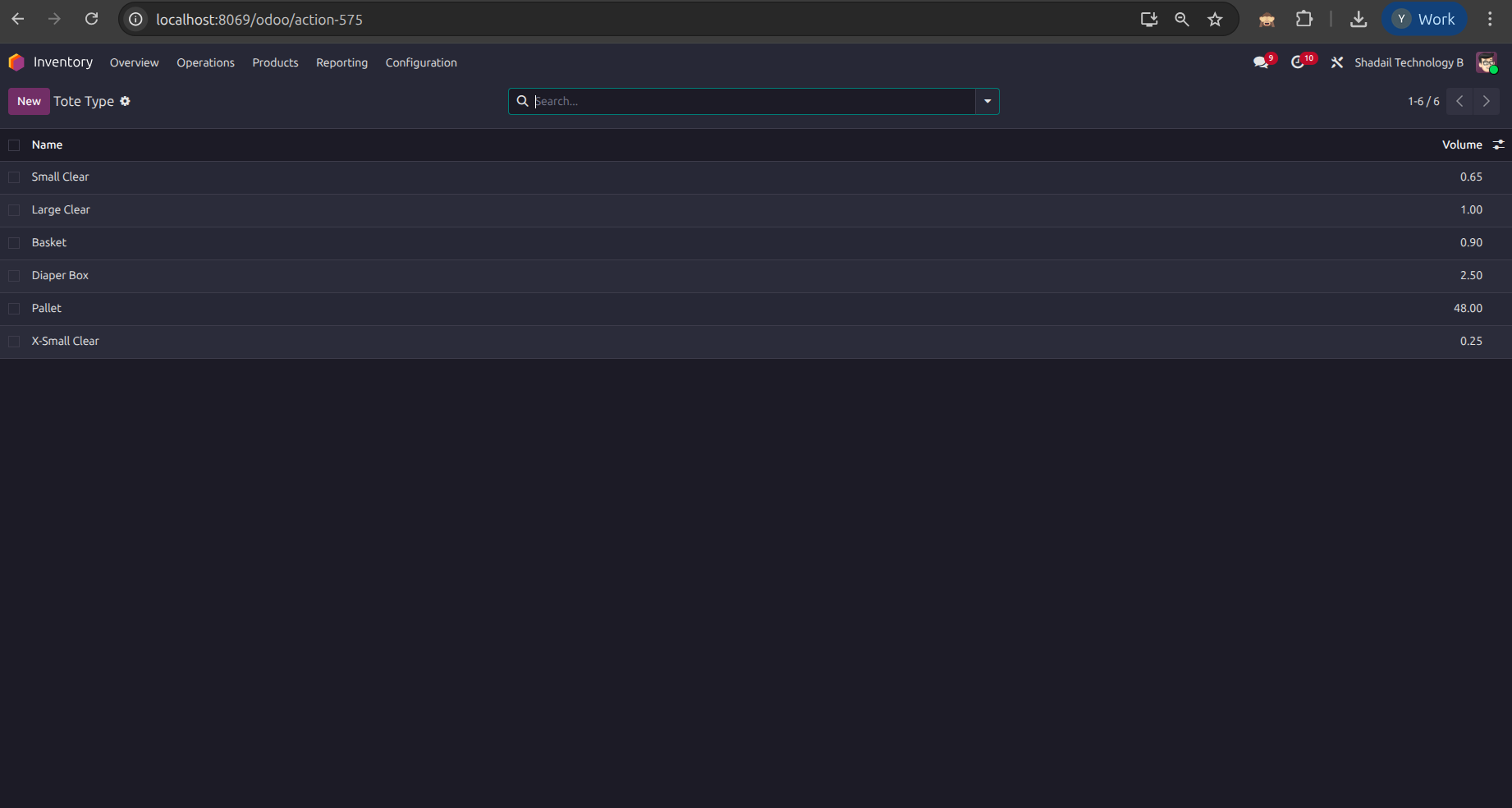
Go to Inventory → Configuration → Tote Types and define each tote size you want to use. The screenshots show examples such as Large Clear, Small Clear, and Diaper Box, each with its own volume.
-
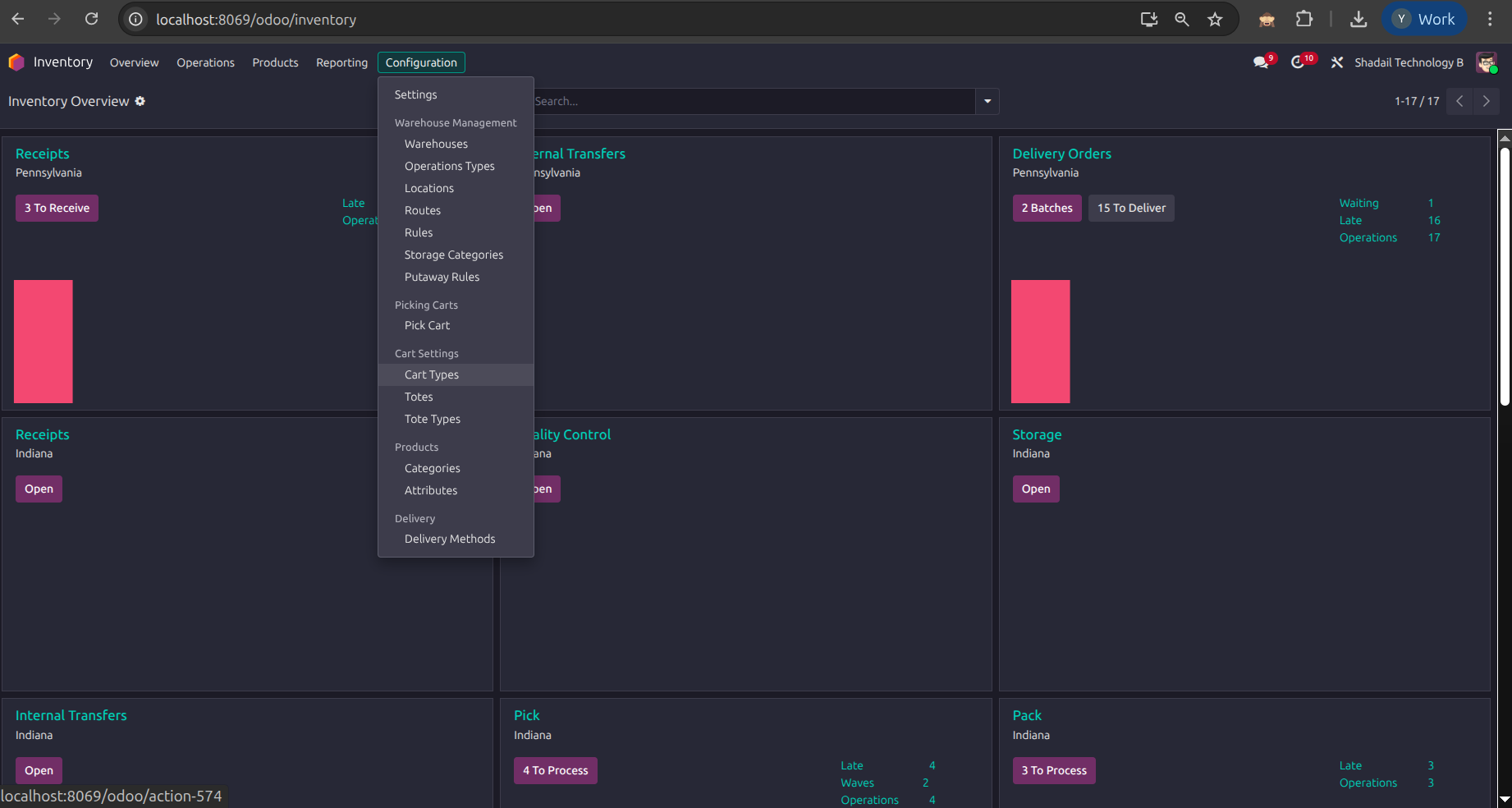
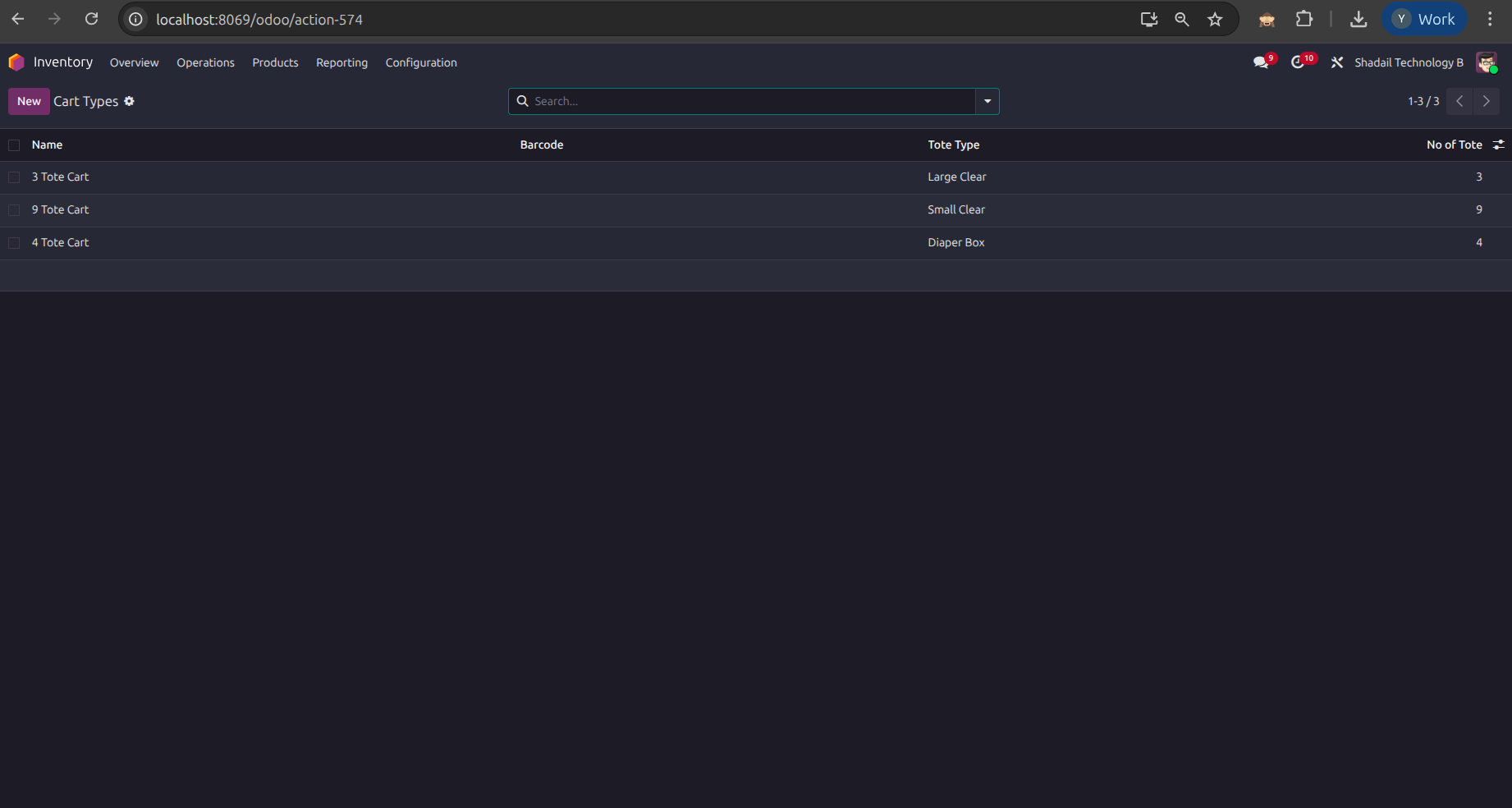
Create Cart Types
Open Inventory → Configuration → Cart Types and create the cart layouts used in your warehouses. In the example flow, there are 3 Tote Cart, 4 Tote Cart, and 9 Tote Cart records, each linked to a tote type and tote count.
Field Description Name The cart layout name shown to users, for example 3 Tote Cartor9 Tote CartTote Type The tote size this cart layout is built for, such as Large ClearorSmall ClearNo of Tote The number of tote slots available on that cart layout -
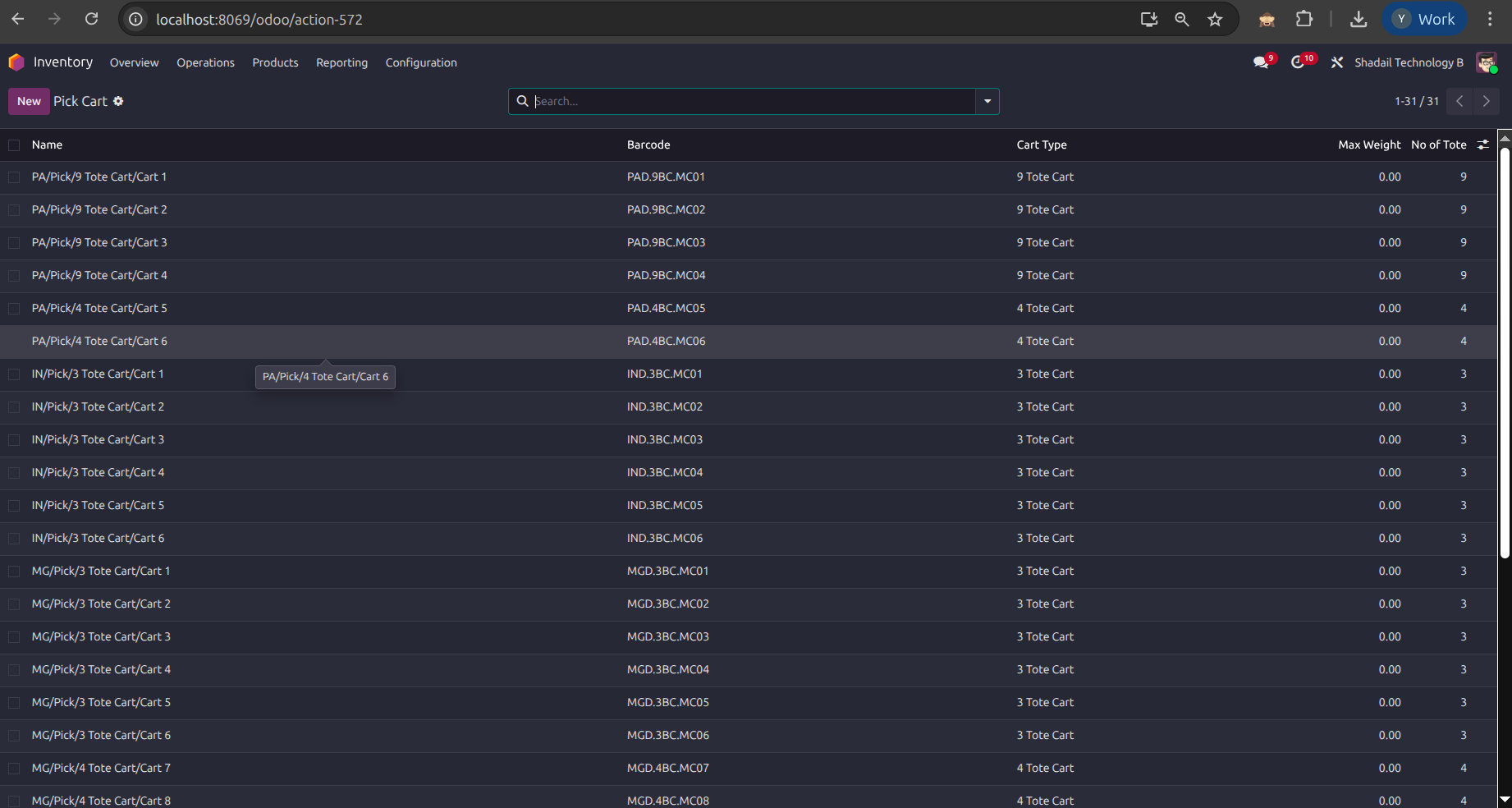
Create Pick Carts per Warehouse
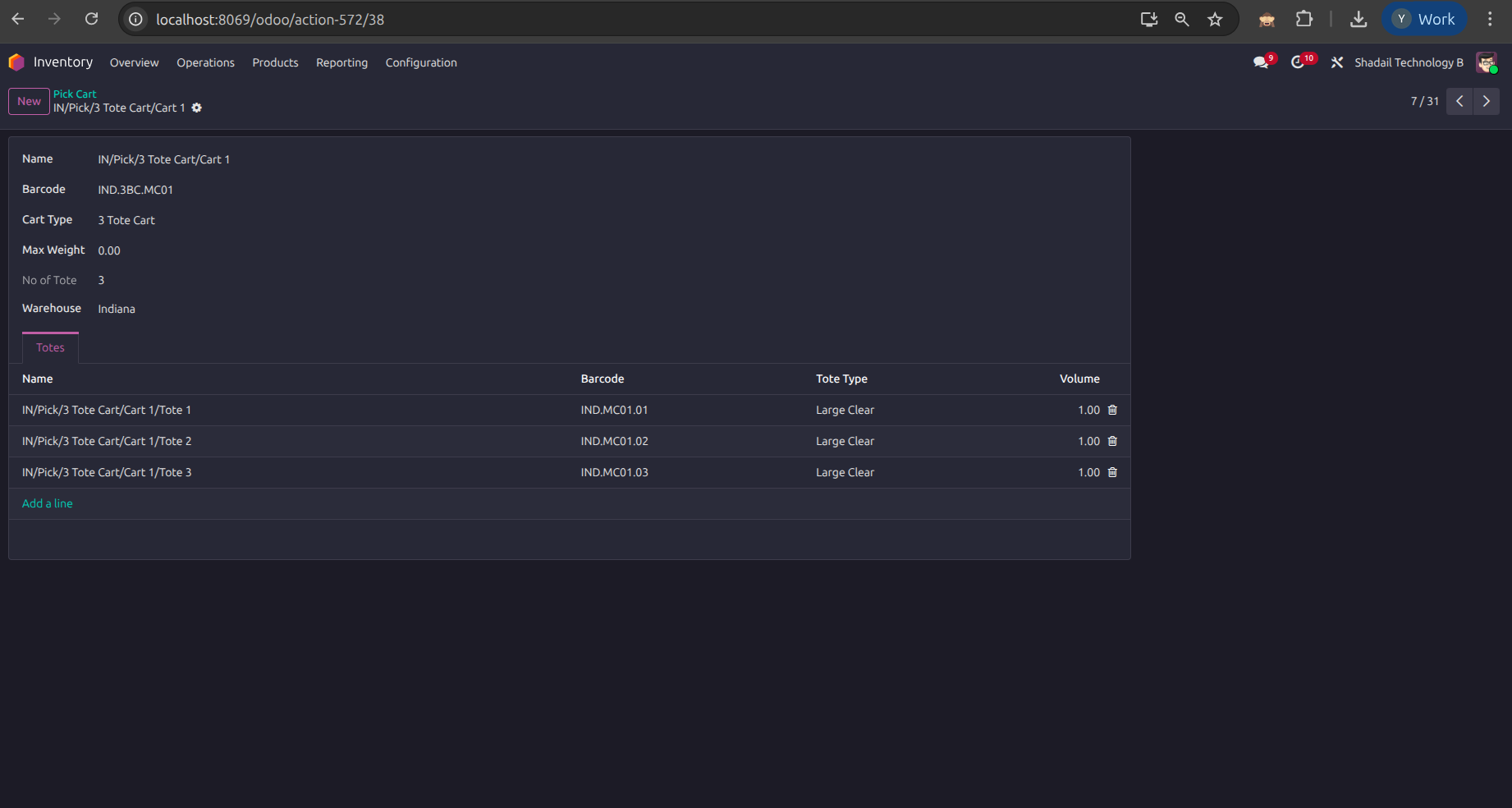
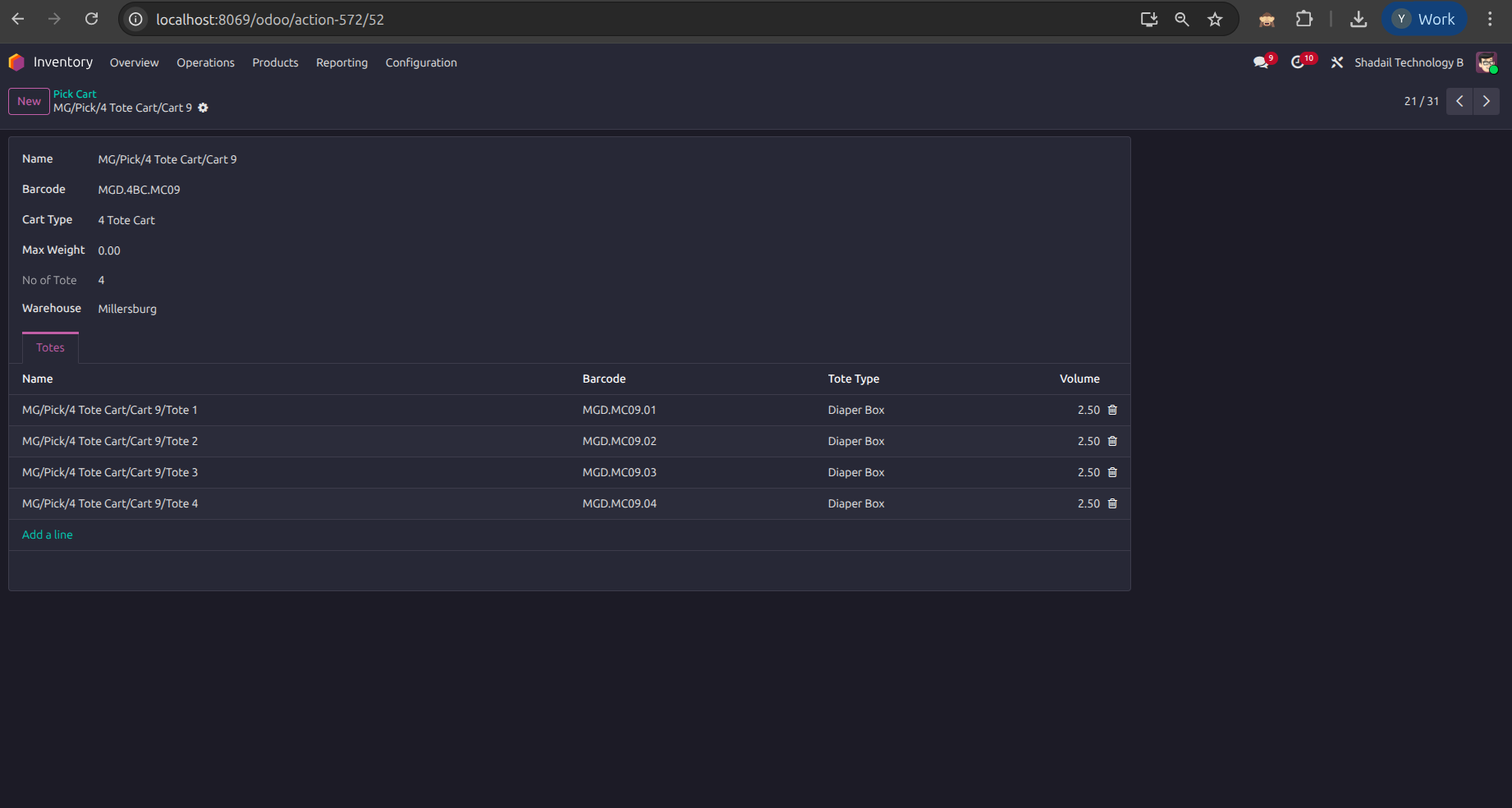
Open Inventory → Configuration → Pick Cart and create a record for each physical cart. Set the cart barcode, choose the cart type, and assign the warehouse. The form view in the screenshots shows carts such as
IN/Pick/3 Tote Cart/Cart 1andPA/Pick/9 Tote Cart/Cart 1.📓Totes tab: Each pick cart contains its tote rows directly on the form, including the tote barcode, tote type, and volume. This is the structure that the wave assignment later uses in the Barcode app. -
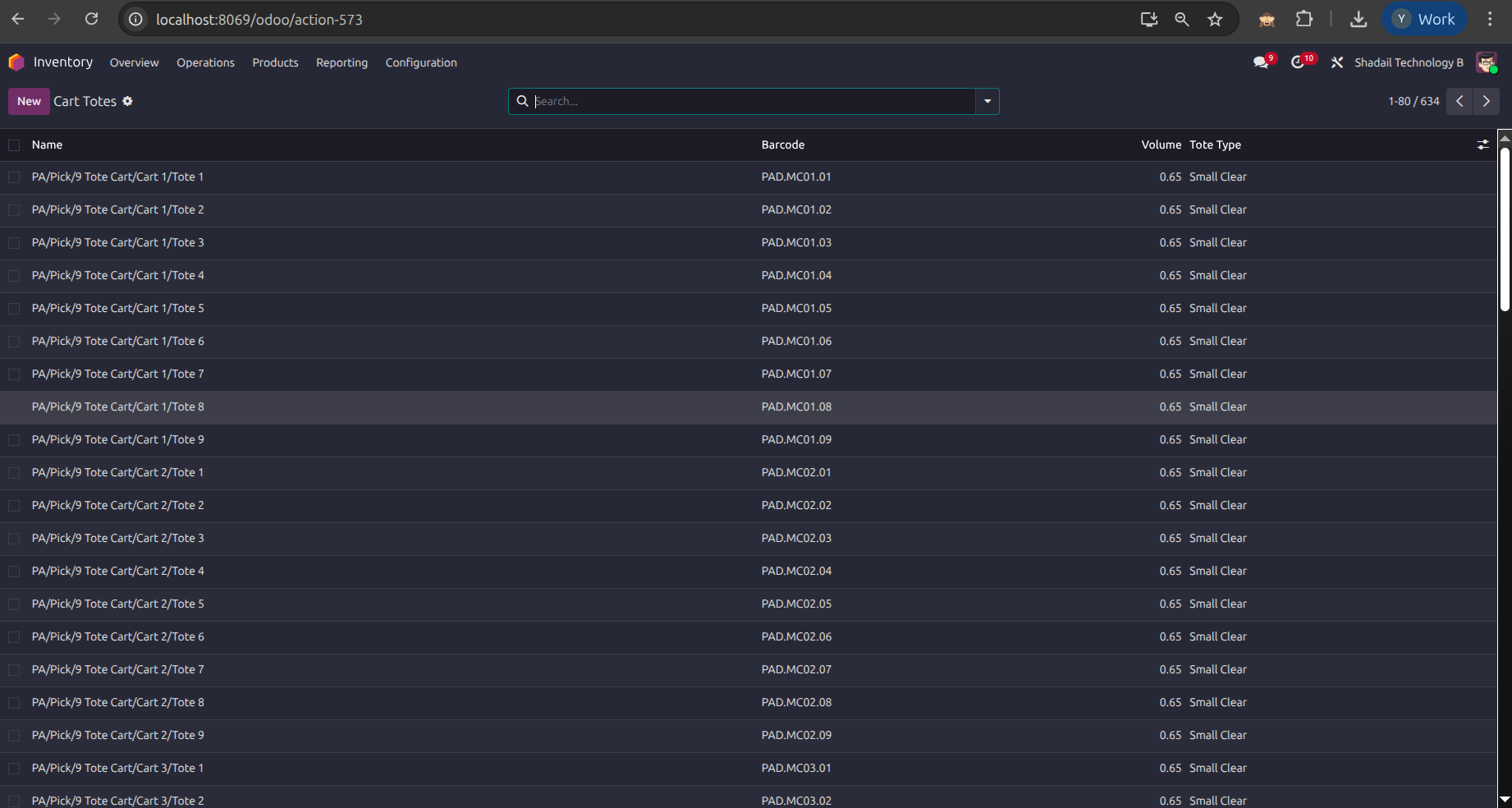
Review the Cart Totes List
Open Inventory → Configuration → Totes to confirm every tote barcode has been generated or entered correctly. The list view shows the tote name, barcode, volume, and tote type for all carts across all configured warehouses.
✅Verification checklist:- Each physical cart has the right warehouse assigned
- Every tote row has a unique barcode
- The tote type matches the cart layout
- The number of totes on the cart matches the cart type definition
-
Generate Waves with the Manual Wave Wizard
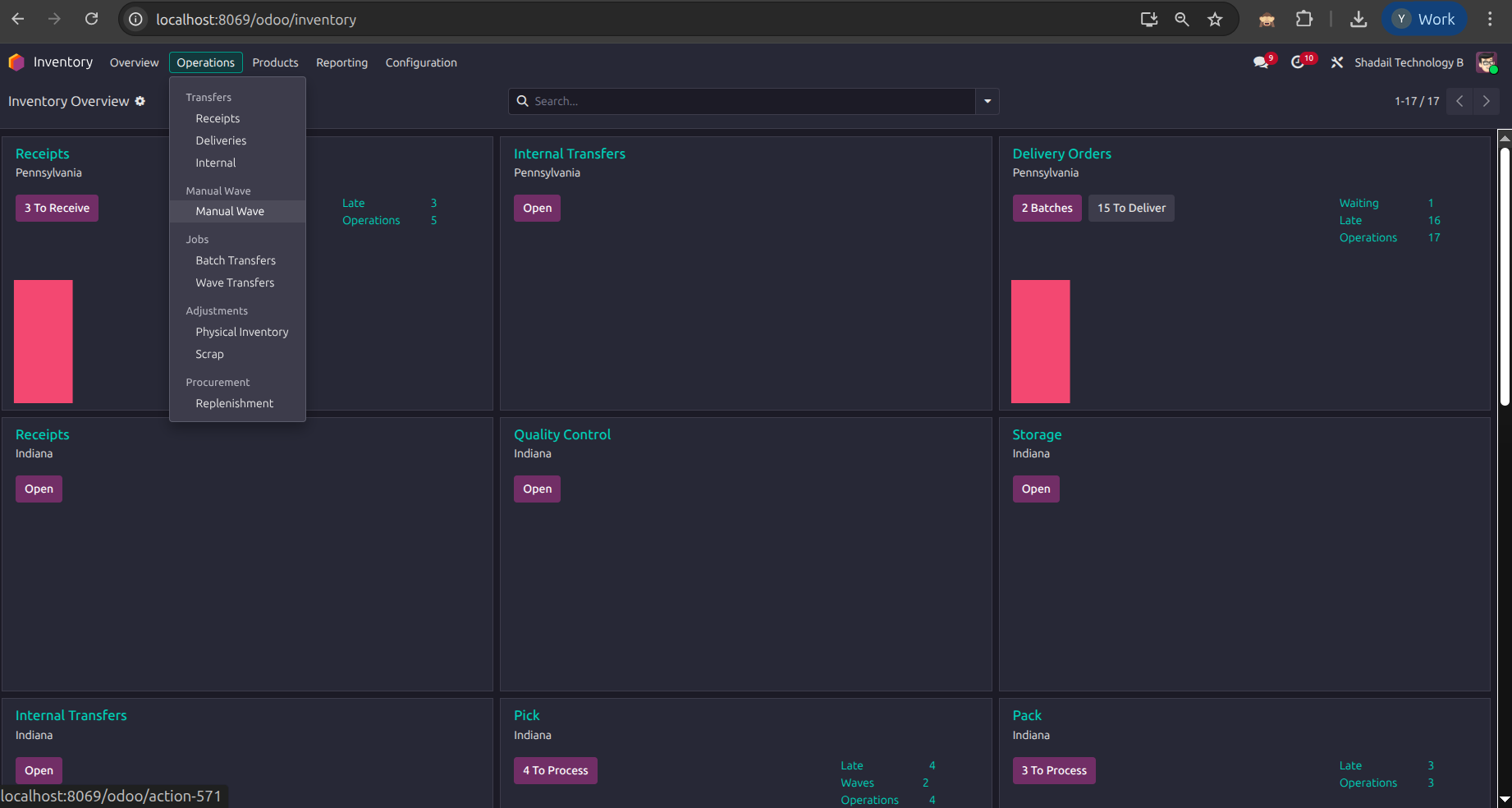
Go to Inventory → Operations → Manual Wave. Select one or more warehouses, choose the delivery method, and optionally filter by product categories or expected delivery date. Clicking Generate Wave creates one or more wave transfers and shows their references in the confirmation popup.
⚠️Wave prerequisites: The wizard works with ready pickings that are not already assigned to another batch, and it requires pick carts to be configured for the selected warehouse. -
Review the Wave Transfer Before Picking
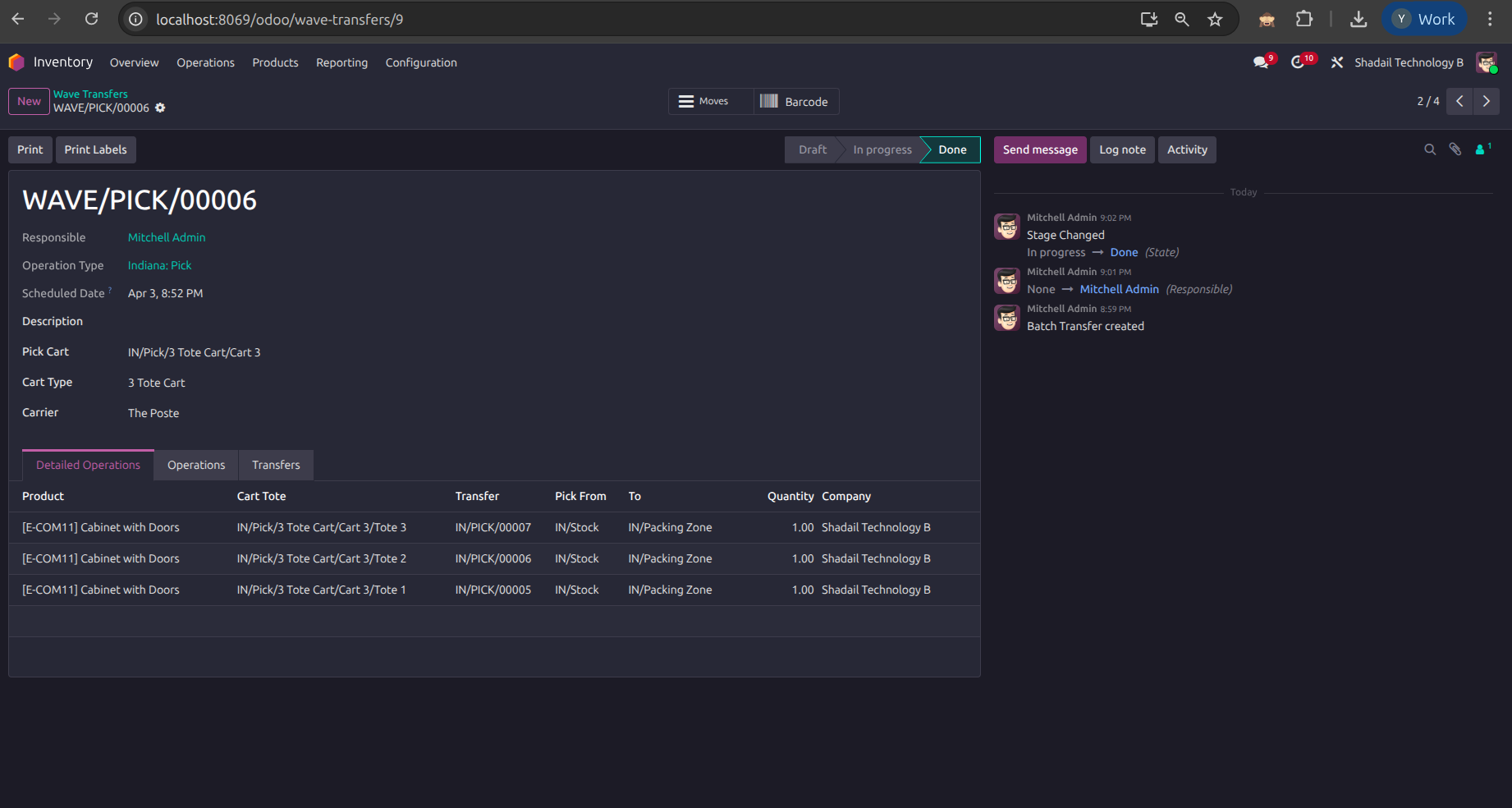
Open the created wave in Inventory → Operations → Wave Transfers. The form shows the operation type, assigned pick cart, cart type, carrier, and the detailed operations table with one tote assignment per transfer. From here you can also print labels and launch the Barcode flow.
Printing Tote Labels
From any wave transfer, click Print Labels to generate the tote labels used during picking. The labels tie the physical cart slots to the digital transfers shown on the wave form and in the Barcode app.
- The tote barcode for scanning in the Barcode app
- The picking reference linked to this tote
- The destination location so pickers know where to drop the tote
End-to-End Wave Flow
Created
Assigned
Opened
Product Scanned
Validated
Wave Done
Detailed Step-by-Step
-
Create the Wave Batch
A warehouse manager opens the Manual Wave Wizard, selects warehouses and a delivery method, applies optional date/category filters, and generates the wave. The confirmation popup lists the wave references that were created.
-
Review the Wave Transfer
Before picking starts, the manager can open the wave transfer and verify the assigned pick cart, cart type, carrier, and tote-to-transfer mapping in the detailed operations table.
-
Open the Batch in Barcode
The picker opens Barcode → Operations → Batches and selects the in-progress wave. The batch card shows the wave reference, cart type, carrier, and line count before the picker enters the job.
-
Scan the Assigned Pick Cart
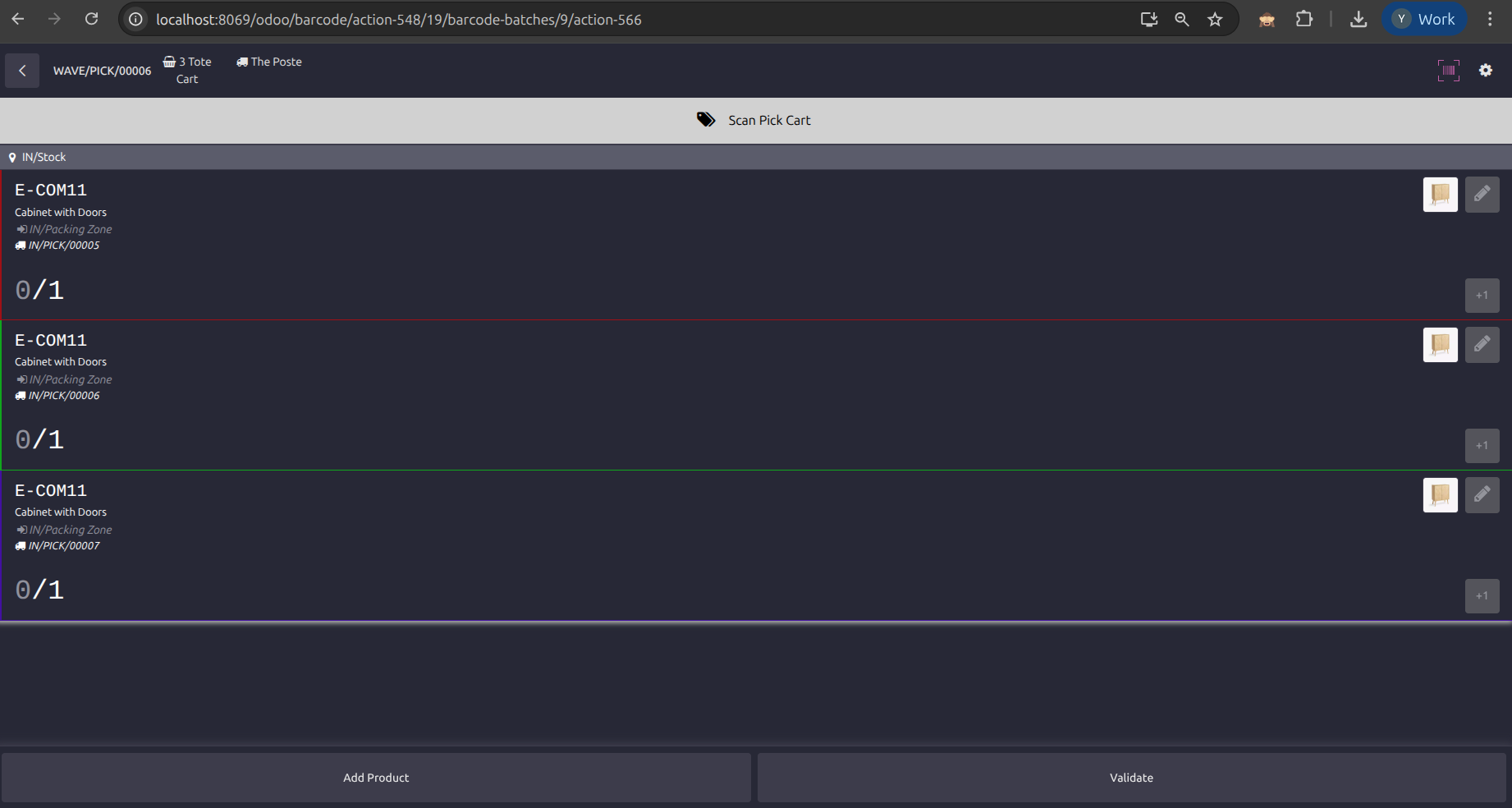
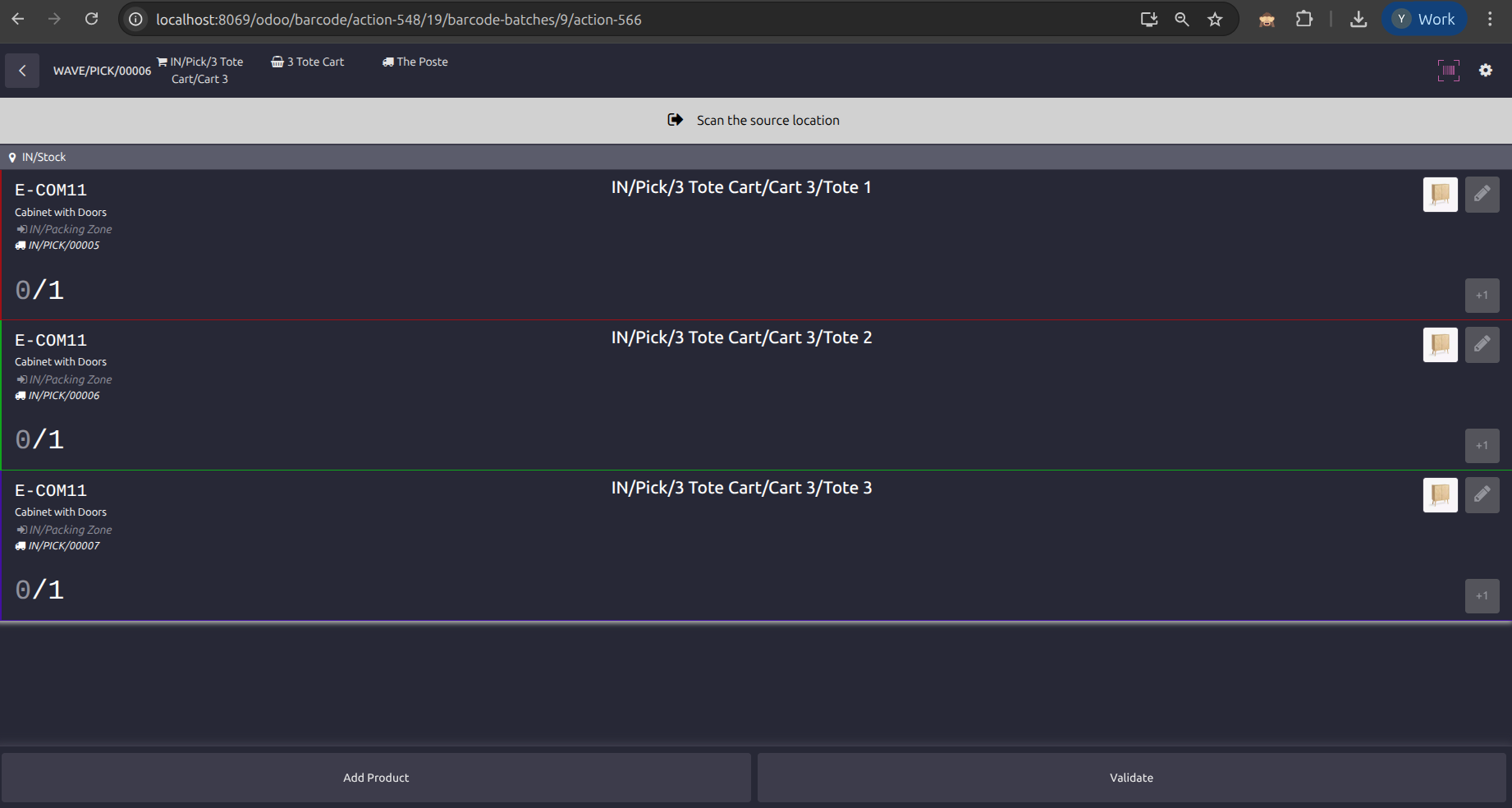
Inside the batch, the first banner asks the picker to Scan Pick Cart. Once the correct cart barcode is scanned, the barcode screen updates to show the tote assignments for each transfer in the batch.
- The wave header shows the selected cart and carrier
- Each transfer row displays its assigned tote name
- The picker cannot start the batch until the cart scan step is complete
-
Pick by Tote and Source Location
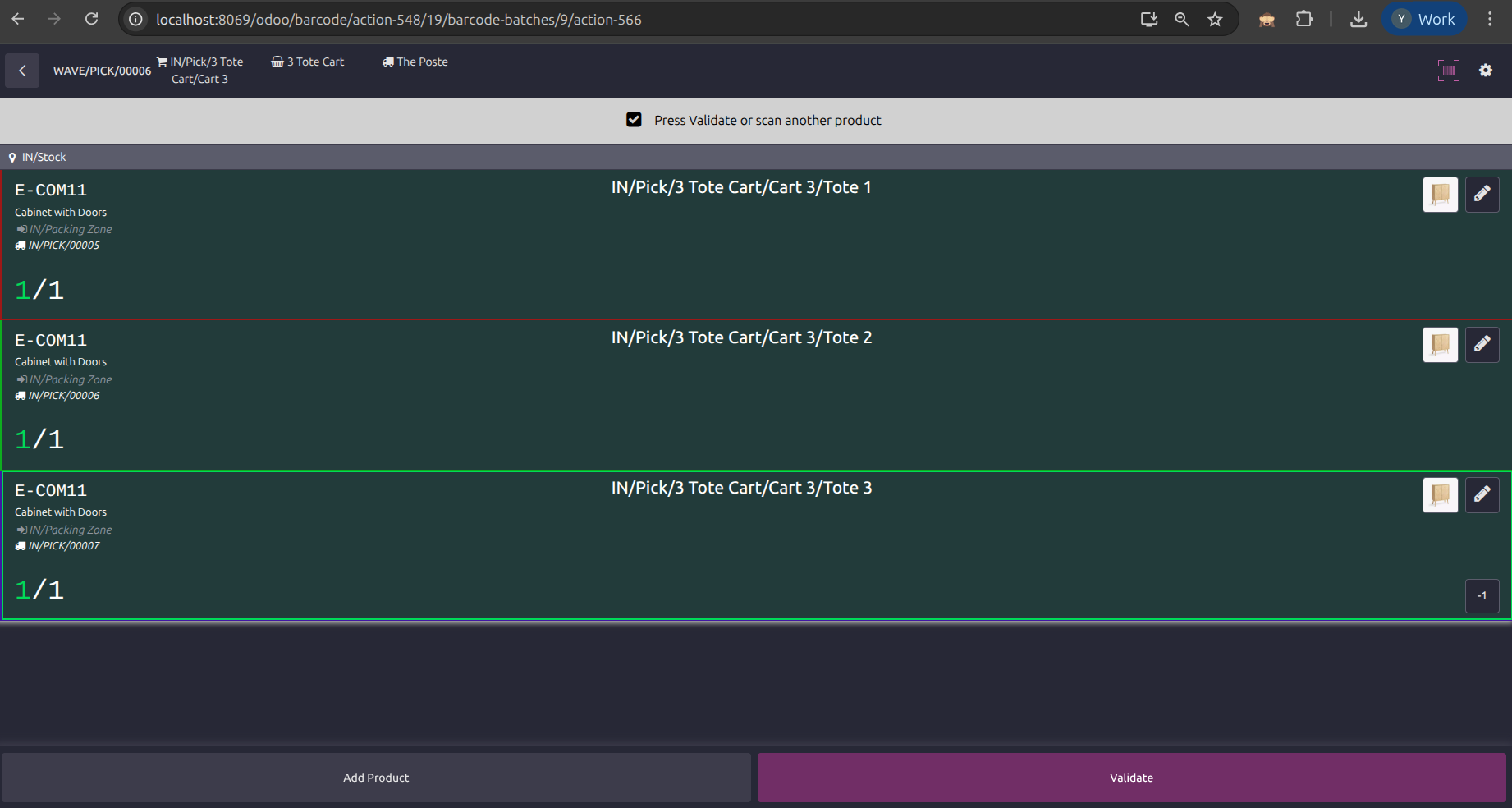
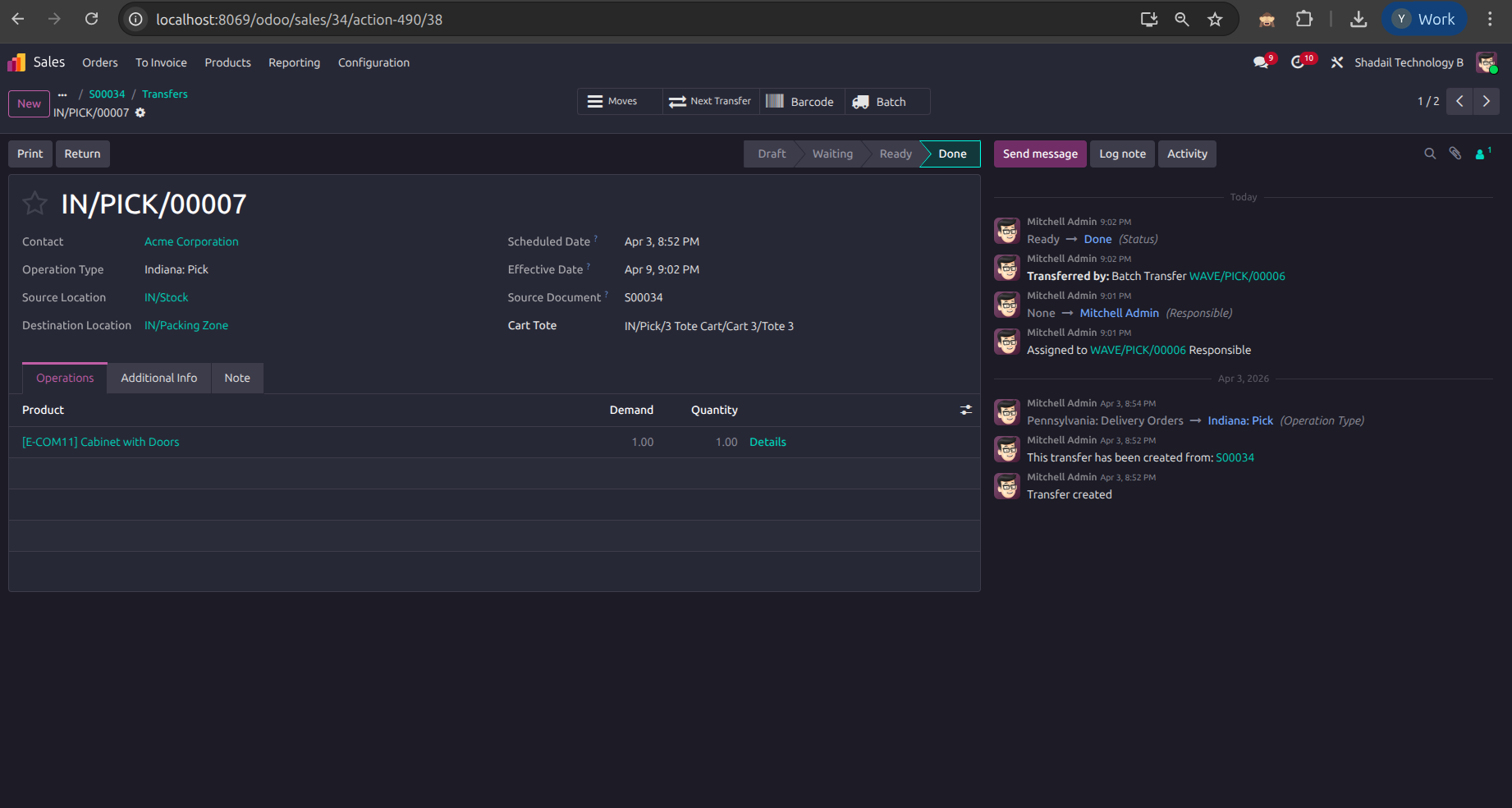
For each transfer, the Barcode app shows the assigned tote prominently and then prompts the picker to scan the source location and products. As quantities are completed, the transfer cards turn green and the Validate button becomes available.
-
Validate the Wave and Review Results
Once all transfers are complete, the picker taps Validate. The wave moves to Done, and the linked pickings show the wave history and tote assignment that was used during execution.
Wave Review Checklist
| Screen | What to Review | Why it Matters |
|---|---|---|
| Manual Wave Wizard | Warehouse selection, delivery method, optional product category and delivery-date filters | Ensures the wizard groups the correct set of ready pickings into the wave. |
| Wave Transfer | Pick cart, cart type, carrier, and the detailed operations rows with transfer/tote mapping | Lets the manager confirm that the cart selected for the batch has enough tote capacity and that each transfer is routed to the correct tote. |
| Barcode Batch | Scan Pick Cart prompt, tote labels per transfer, completion counters, and the Validate button state | Confirms the picker is following the guided barcode flow and that the batch is fully complete before validation. |
Module Dependencies
| Module | Type | Purpose |
|---|---|---|
stock_barcode | Hard | Barcode app — required for cart/tote scan enforcement |
stock_barcode_picking_batch | Hard | Batch picking barcode integration |
stock_picking_batch | Hard | Wave/batch transfer framework |
stock | Hard | Core inventory and move line models |
delivery | Hard | Delivery carrier selection in the wave wizard and carrier visibility on the wave/batch screens |
stock_delivery | Hard | Stock delivery integration |
Key Models & Fields
| Model | Field / Extension | Description |
|---|---|---|
pick.cart | Core model | Physical cart record with name, barcode, cart type, warehouse, and linked tote rows |
cart.type | Core model | Template for a cart layout, including tote type and number of tote slots |
cart.tote | Core model | Individual tote slot with its own barcode and tote type, attached to a pick cart |
tote.type | Core model | Defines tote capacity/volume used by the manual wave grouping logic |
stock.picking.batch | Extended | Adds pick cart, cart type, and carrier fields, then assigns one tote per transfer inside the wave |
stock.picking | Extended | Adds cart tote/carrier helper fields and preserves tote context when the pick transfer moves forward |
stock.move.line | Extended | Adds tote assignment fields to barcode data and move-line records |
stock.picking.type | Extended | Adds auto-print toggles for local carrier labels and invoices |
JavaScript & Barcode App Overrides
| File | Overrides | Purpose |
|---|---|---|
models/barcode_picking_model.js |
BarcodePickingModel |
Adds cart and tote scan validation logic to the single-picking barcode flow |
models/barcode_picking_batch_model.js |
BarcodePickingBatchModel |
Extends the batch barcode model to handle wave-level cart scan, tote scan per picking, and wave popup messages |
lazy_barcode_cache.js |
LazyBarcodeCache |
Extends the barcode cache to include cart and tote barcode lookups without extra RPC calls |
components/main.js / main.xml |
Main barcode component | Adds cart/tote scan UI panels, popup message overlay, and pick info banner |
components/line.xml |
Move line component | Adds tote assignment display to each line in the barcode app picking list |
css/pick_info.css |
Styles | Styles for the pick info banner, tote scan panel, and wave popup overlay |
Wizards
| Wizard | Purpose |
|---|---|
manual.wave.wiz | Manual wave creation wizard — selects ready pickings by warehouse, carrier, date, and category, then creates waves sized to cart capacity |
wave.popup.msg | Wave popup message configuration wizard — define messages shown to pickers at wave milestones |
choose.delivery.package | Extended delivery package selection dialog with tote assignment support |
File Structure
Security Notes
security/ir.model.access.csv.
Before You Start
Make sure the assigned physical cart is available, tote labels are attached to each slot, and you have a scanner or mobile device running the Odoo Barcode app.
Step-by-Step Picking
-
Open the Batch Queue
Open the Odoo Barcode app and go to Operations → Batches. Select the in-progress wave assigned to your warehouse team. The batch card shows the wave reference, carrier, cart type, and the number of transfer lines.
-
Scan the Cart Barcode
When the batch opens, the first banner asks you to Scan Pick Cart. Scan the barcode on the physical cart assigned to that wave before attempting any picking.
💡If you scan the wrong cart, the app will show an error. Pick up the correct cart shown on screen before proceeding. -
Confirm the Tote Assignments
After the cart is scanned, each transfer row shows the tote assigned to it, such as
IN/Pick/3 Tote Cart/Cart 3/Tote 1. Use those on-screen tote names to place products into the correct cart slot. -
Scan Source Location and Products
Follow the next barcode prompts for the transfer. The screenshots show the app asking for the source location and then for the products/quantities on each line. Pick the item and place it into the tote shown on that row.
- Scan the requested source location when prompted
- Scan the product barcode and complete the requested quantity
- Watch the line counters change from
0/1to1/1
-
Repeat Until All Rows Turn Complete
Continue through each transfer in the batch. When a transfer is fully picked, its row turns green and the line counter shows that the required quantity is complete.
-
Validate the Wave
Once all rows are complete, tap Validate. The wave moves to Done, and the completed transfers remain linked to the wave and their tote assignments on the standard Odoo forms.
Frequently Asked Questions
| Question | Answer |
|---|---|
| What if I scan the wrong tote? | The app will show an error message. Scan the correct tote label (shown on screen) to proceed. No picking action will be accepted until the right tote is scanned. |
| What if a product is out of stock? | Follow your warehouse shortage process and ask the manager to review the transfer before final validation. The screenshots and code focus on cart/tote flow rather than custom shortage rules. |
| Can I skip a tote and come back to it? | Work through the transfers shown in the batch so the tote assignments remain consistent with the wave. If the order needs to change, ask the warehouse manager to review the wave first. |
| What does the popup message mean? | Popup messages are configured by your warehouse manager to guide you at key steps (cart scan confirmed, tote change, wave complete). Read them and tap OK to continue. |
| What if my cart barcode won't scan? | Try entering the cart barcode manually using the keyboard input on the scan prompt. If the cart is not recognised, contact your warehouse manager to verify the cart record in the system. |
Configuration
Wave Creation
Barcode Execution
Completion & Traceability
Need Help or a Custom Feature?
Our team at Shadail Technology is here to help you get the most out of Odoo. Reach out for support, customisation, or consulting.
Contact UsStock Pick
Cart
Barcode-driven warehouse picking with physical carts and tote slots. Configure tote types and cart types, generate waves with the Manual Wave Wizard, assign one tote per transfer, and complete the batch in the Odoo Barcode app with guided cart and source-location scans.
Cart & Tote Structure
Set up tote types, cart types, physical pick carts, and individual tote barcodes so each warehouse can work with a repeatable cart layout.
Barcode-driven Scanning
Guide pickers through the barcode batch flow with a clear Scan Pick Cart step followed by source-location and product scans for each assigned transfer.
Manual Wave Wizard
Create waves from ready pickings by warehouse and carrier, with optional delivery-date and product-category filters, directly from Inventory operations.
Wave Transfer Visibility
Review each wave with its assigned pick cart, cart type, carrier, detailed operations, and linked transfers before the team starts picking.
Tote Label Reports
Print tote labels from the wave transfer so every tote slot has a scannable barcode linked to the correct transfer and destination.
Warehouse-specific Cart Pools
Create separate cart sets for each warehouse and reuse the same module across different tote sizes such as 3-tote, 4-tote, and 9-tote carts.
Capacity-based Grouping
Match ready pickings to tote capacity and split them into waves sized to the number of totes available on the selected cart type.
Barcode Batch Queue
See in-progress wave batches in the Barcode app with the cart type, carrier, and line count shown before the picker opens the job.
Transfer Traceability
Completed pickings keep their tote reference and wave history, making it easy to trace which tote/cart combination was used for each transfer.
-
Install the Module
Ensure the following modules are installed first: Inventory (
stock), Barcode (stock_barcode), Batch Picking (stock_picking_batch), Batch Picking Barcode (stock_barcode_picking_batch), and Delivery (delivery). Then install Stock Pick Cart from the Apps menu.💡Auto-created on install: Security access rights for cart and tote records are configured automatically. No manual access setup is needed. -
Create Tote Types
Go to Inventory → Configuration → Tote Types and define each tote size you want to use. The screenshots show examples such as Large Clear, Small Clear, and Diaper Box, each with its own volume.
-
Create Cart Types
Open Inventory → Configuration → Cart Types and create the cart layouts used in your warehouses. In the example flow, there are 3 Tote Cart, 4 Tote Cart, and 9 Tote Cart records, each linked to a tote type and tote count.
Field Description Name The cart layout name shown to users, for example 3 Tote Cartor9 Tote CartTote Type The tote size this cart layout is built for, such as Large ClearorSmall ClearNo of Tote The number of tote slots available on that cart layout -
Create Pick Carts per Warehouse
Open Inventory → Configuration → Pick Cart and create a record for each physical cart. Set the cart barcode, choose the cart type, and assign the warehouse. The form view in the screenshots shows carts such as
IN/Pick/3 Tote Cart/Cart 1andPA/Pick/9 Tote Cart/Cart 1.📓Totes tab: Each pick cart contains its tote rows directly on the form, including the tote barcode, tote type, and volume. This is the structure that the wave assignment later uses in the Barcode app. -
Review the Cart Totes List
Open Inventory → Configuration → Totes to confirm every tote barcode has been generated or entered correctly. The list view shows the tote name, barcode, volume, and tote type for all carts across all configured warehouses.
✅Verification checklist:- Each physical cart has the right warehouse assigned
- Every tote row has a unique barcode
- The tote type matches the cart layout
- The number of totes on the cart matches the cart type definition
-
Generate Waves with the Manual Wave Wizard
Go to Inventory → Operations → Manual Wave. Select one or more warehouses, choose the delivery method, and optionally filter by product categories or expected delivery date. Clicking Generate Wave creates one or more wave transfers and shows their references in the confirmation popup.
⚠️Wave prerequisites: The wizard works with ready pickings that are not already assigned to another batch, and it requires pick carts to be configured for the selected warehouse. -
Review the Wave Transfer Before Picking
Open the created wave in Inventory → Operations → Wave Transfers. The form shows the operation type, assigned pick cart, cart type, carrier, and the detailed operations table with one tote assignment per transfer. From here you can also print labels and launch the Barcode flow.
Printing Tote Labels
From any wave transfer, click Print Labels to generate the tote labels used during picking. The labels tie the physical cart slots to the digital transfers shown on the wave form and in the Barcode app.
- The tote barcode for scanning in the Barcode app
- The picking reference linked to this tote
- The destination location so pickers know where to drop the tote
End-to-End Wave Flow
Created
Assigned
Opened
Product Scanned
Validated
Wave Done
Detailed Step-by-Step
-
Create the Wave Batch
A warehouse manager opens the Manual Wave Wizard, selects warehouses and a delivery method, applies optional date/category filters, and generates the wave. The confirmation popup lists the wave references that were created.
-
Review the Wave Transfer
Before picking starts, the manager can open the wave transfer and verify the assigned pick cart, cart type, carrier, and tote-to-transfer mapping in the detailed operations table.
-
Open the Batch in Barcode
The picker opens Barcode → Operations → Batches and selects the in-progress wave. The batch card shows the wave reference, cart type, carrier, and line count before the picker enters the job.
-
Scan the Assigned Pick Cart
Inside the batch, the first banner asks the picker to Scan Pick Cart. Once the correct cart barcode is scanned, the barcode screen updates to show the tote assignments for each transfer in the batch.
- The wave header shows the selected cart and carrier
- Each transfer row displays its assigned tote name
- The picker cannot start the batch until the cart scan step is complete
-
Pick by Tote and Source Location
For each transfer, the Barcode app shows the assigned tote prominently and then prompts the picker to scan the source location and products. As quantities are completed, the transfer cards turn green and the Validate button becomes available.
-
Validate the Wave and Review Results
Once all transfers are complete, the picker taps Validate. The wave moves to Done, and the linked pickings show the wave history and tote assignment that was used during execution.
Wave Review Checklist
| Screen | What to Review | Why it Matters |
|---|---|---|
| Manual Wave Wizard | Warehouse selection, delivery method, optional product category and delivery-date filters | Ensures the wizard groups the correct set of ready pickings into the wave. |
| Wave Transfer | Pick cart, cart type, carrier, and the detailed operations rows with transfer/tote mapping | Lets the manager confirm that the cart selected for the batch has enough tote capacity and that each transfer is routed to the correct tote. |
| Barcode Batch | Scan Pick Cart prompt, tote labels per transfer, completion counters, and the Validate button state | Confirms the picker is following the guided barcode flow and that the batch is fully complete before validation. |
Module Dependencies
| Module | Type | Purpose |
|---|---|---|
stock_barcode | Hard | Barcode app — required for cart/tote scan enforcement |
stock_barcode_picking_batch | Hard | Batch picking barcode integration |
stock_picking_batch | Hard | Wave/batch transfer framework |
stock | Hard | Core inventory and move line models |
delivery | Hard | Delivery carrier selection in the wave wizard and carrier visibility on the wave/batch screens |
stock_delivery | Hard | Stock delivery integration |
Key Models & Fields
| Model | Field / Extension | Description |
|---|---|---|
pick.cart | Core model | Physical cart record with name, barcode, cart type, warehouse, and linked tote rows |
cart.type | Core model | Template for a cart layout, including tote type and number of tote slots |
cart.tote | Core model | Individual tote slot with its own barcode and tote type, attached to a pick cart |
tote.type | Core model | Defines tote capacity/volume used by the manual wave grouping logic |
stock.picking.batch | Extended | Adds pick cart, cart type, and carrier fields, then assigns one tote per transfer inside the wave |
stock.picking | Extended | Adds cart tote/carrier helper fields and preserves tote context when the pick transfer moves forward |
stock.move.line | Extended | Adds tote assignment fields to barcode data and move-line records |
stock.picking.type | Extended | Adds auto-print toggles for local carrier labels and invoices |
JavaScript & Barcode App Overrides
| File | Overrides | Purpose |
|---|---|---|
models/barcode_picking_model.js |
BarcodePickingModel |
Adds cart and tote scan validation logic to the single-picking barcode flow |
models/barcode_picking_batch_model.js |
BarcodePickingBatchModel |
Extends the batch barcode model to handle wave-level cart scan, tote scan per picking, and wave popup messages |
lazy_barcode_cache.js |
LazyBarcodeCache |
Extends the barcode cache to include cart and tote barcode lookups without extra RPC calls |
components/main.js / main.xml |
Main barcode component | Adds cart/tote scan UI panels, popup message overlay, and pick info banner |
components/line.xml |
Move line component | Adds tote assignment display to each line in the barcode app picking list |
css/pick_info.css |
Styles | Styles for the pick info banner, tote scan panel, and wave popup overlay |
Wizards
| Wizard | Purpose |
|---|---|
manual.wave.wiz | Manual wave creation wizard — selects ready pickings by warehouse, carrier, date, and category, then creates waves sized to cart capacity |
wave.popup.msg | Wave popup message configuration wizard — define messages shown to pickers at wave milestones |
choose.delivery.package | Extended delivery package selection dialog with tote assignment support |
File Structure
Security Notes
security/ir.model.access.csv.
Before You Start
Make sure the assigned physical cart is available, tote labels are attached to each slot, and you have a scanner or mobile device running the Odoo Barcode app.
Step-by-Step Picking
-
Open the Batch Queue
Open the Odoo Barcode app and go to Operations → Batches. Select the in-progress wave assigned to your warehouse team. The batch card shows the wave reference, carrier, cart type, and the number of transfer lines.
-
Scan the Cart Barcode
When the batch opens, the first banner asks you to Scan Pick Cart. Scan the barcode on the physical cart assigned to that wave before attempting any picking.
💡If you scan the wrong cart, the app will show an error. Pick up the correct cart shown on screen before proceeding. -
Confirm the Tote Assignments
After the cart is scanned, each transfer row shows the tote assigned to it, such as
IN/Pick/3 Tote Cart/Cart 3/Tote 1. Use those on-screen tote names to place products into the correct cart slot. -
Scan Source Location and Products
Follow the next barcode prompts for the transfer. The screenshots show the app asking for the source location and then for the products/quantities on each line. Pick the item and place it into the tote shown on that row.
- Scan the requested source location when prompted
- Scan the product barcode and complete the requested quantity
- Watch the line counters change from
0/1to1/1
-
Repeat Until All Rows Turn Complete
Continue through each transfer in the batch. When a transfer is fully picked, its row turns green and the line counter shows that the required quantity is complete.
-
Validate the Wave
Once all rows are complete, tap Validate. The wave moves to Done, and the completed transfers remain linked to the wave and their tote assignments on the standard Odoo forms.
Frequently Asked Questions
| Question | Answer |
|---|---|
| What if I scan the wrong tote? | The app will show an error message. Scan the correct tote label (shown on screen) to proceed. No picking action will be accepted until the right tote is scanned. |
| What if a product is out of stock? | Follow your warehouse shortage process and ask the manager to review the transfer before final validation. The screenshots and code focus on cart/tote flow rather than custom shortage rules. |
| Can I skip a tote and come back to it? | Work through the transfers shown in the batch so the tote assignments remain consistent with the wave. If the order needs to change, ask the warehouse manager to review the wave first. |
| What does the popup message mean? | Popup messages are configured by your warehouse manager to guide you at key steps (cart scan confirmed, tote change, wave complete). Read them and tap OK to continue. |
| What if my cart barcode won't scan? | Try entering the cart barcode manually using the keyboard input on the scan prompt. If the cart is not recognised, contact your warehouse manager to verify the cart record in the system. |
Configuration
Wave Creation
Barcode Execution
Completion & Traceability
Need Help or a Custom Feature?
Our team at Shadail Technology is here to help you get the most out of Odoo. Reach out for support, customisation, or consulting.
Contact Us